Installation of TeskaLabs LogMan.io Collector
This short tutorial explains how to connect a new log collector running as a virtual machine.
Tip
If you are using a hardware TeskaLabs LogMan.io Collector, connect the monitor via HDMI and go straight to step 5.
-
Download the virtual machine disk image.
VMDK ~800 MB
-
Import the downloaded disk image to your virtualization platform.
-
Create a new virtual machine
- Name: LogMan.io Collector VM (or name it according your naming conventions)
- Type: Linux 64bit
- CPU: 2 cores (or more)
- RAM: 2GB
- OS HDD: Use
lmio-collector.vmdkthat you downloaded in the previous step - Data HDD: Create a second disk for a log cache, 50GB mininum, thin provisioning is possible and recommended for larger Data HDD.
-
Configure network settings of a new virtual machine
Requirements:
- The virtual machine must be able to reach the TeskaLabs LogMan.io installation.
- The virtual machine must be reachable from devices that will ship logs into TeskaLabs LogMan.io.
-
Launch the virtual machine.
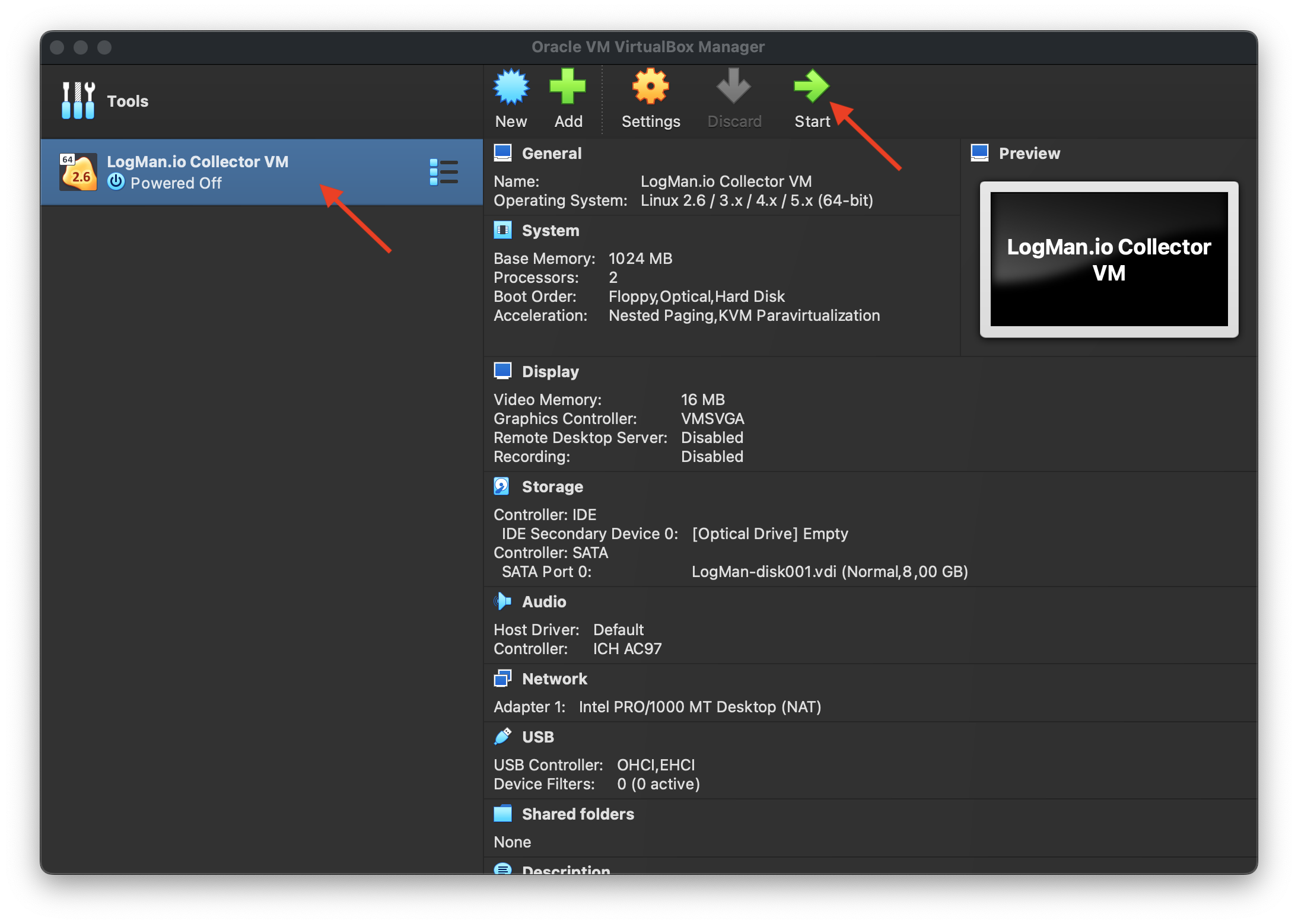
-
Configure the OS layer of the collector
- Press
Alt-F2to get to the OS console - Login as
root - Type
passwdand set the root password - Type
passwd tladminand set the administrator password - Optionally enable SSH server:
service sshd startrc-update add sshd
- Set a correct LogMan.io URL:
vi /conf/lmio-collector.yaml- Edit
url: https://app.logman.io/lmio-receiverline - Save by
:wq
rebootto apply
- Press
-
Determine the identity of TeskaLabs LogMan.io Collector.
The identity consists of 16 letters and digits. Please save this for the following steps.
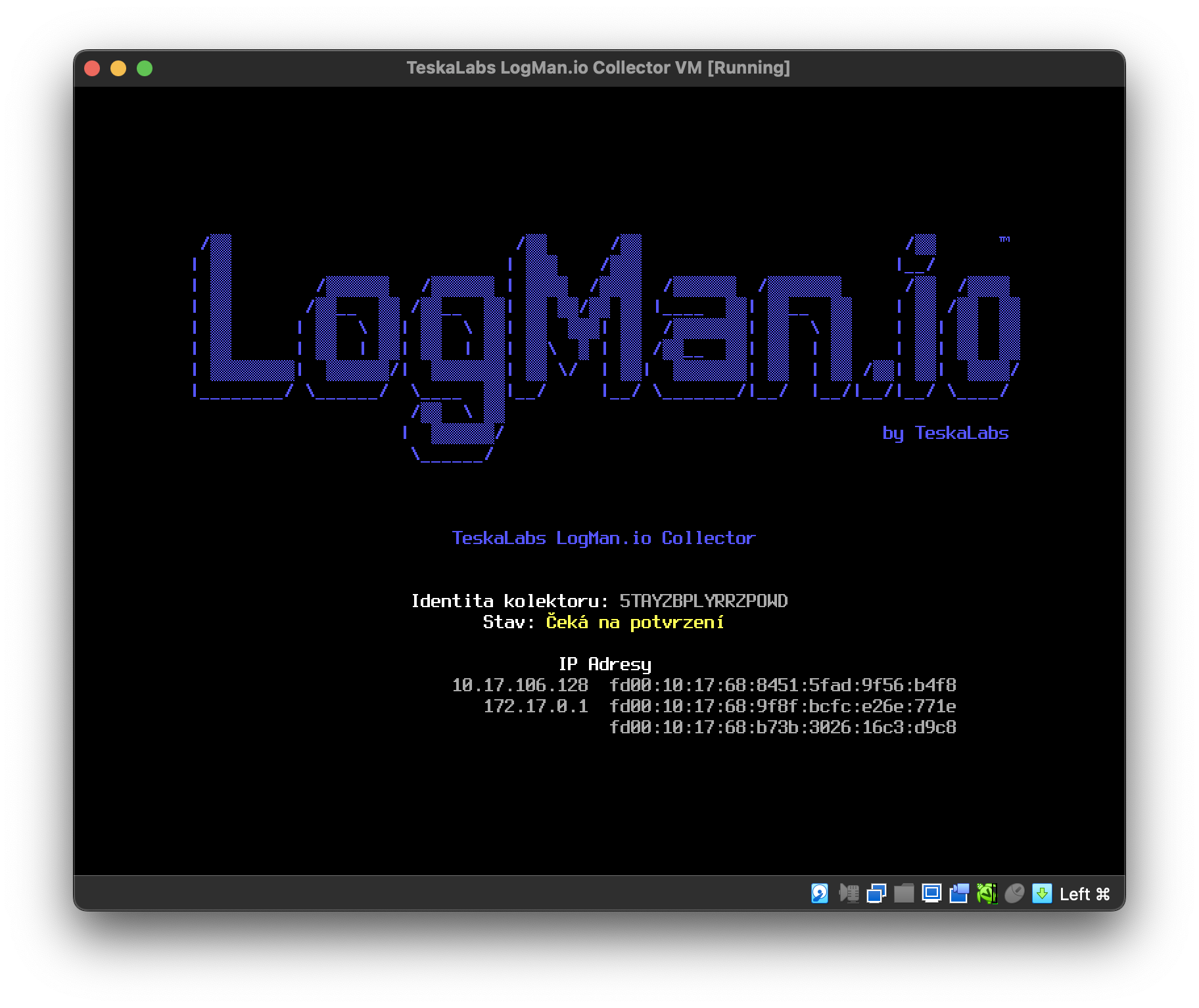
-
Open the LogMan.io web application in your browser.
Follow this link or navigate to "Collectors" and click on the "Provisioning" button.
-
Enter the collector identity from step 4 in the box.
Then, click Provision to connect the collector and start collecting logs.
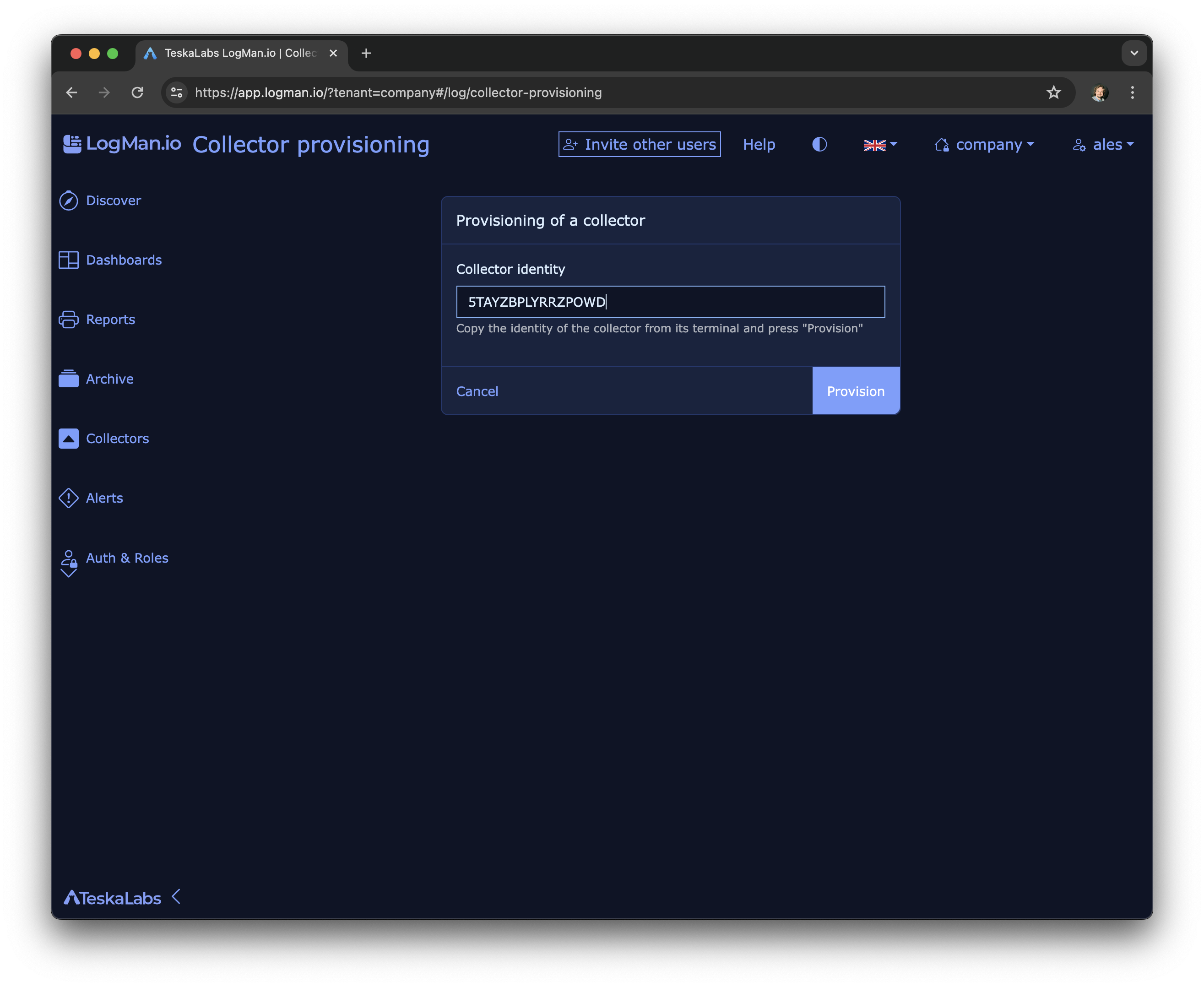
-
TeskaLabs LogMan.io Collector is successfully connected and collects logs.
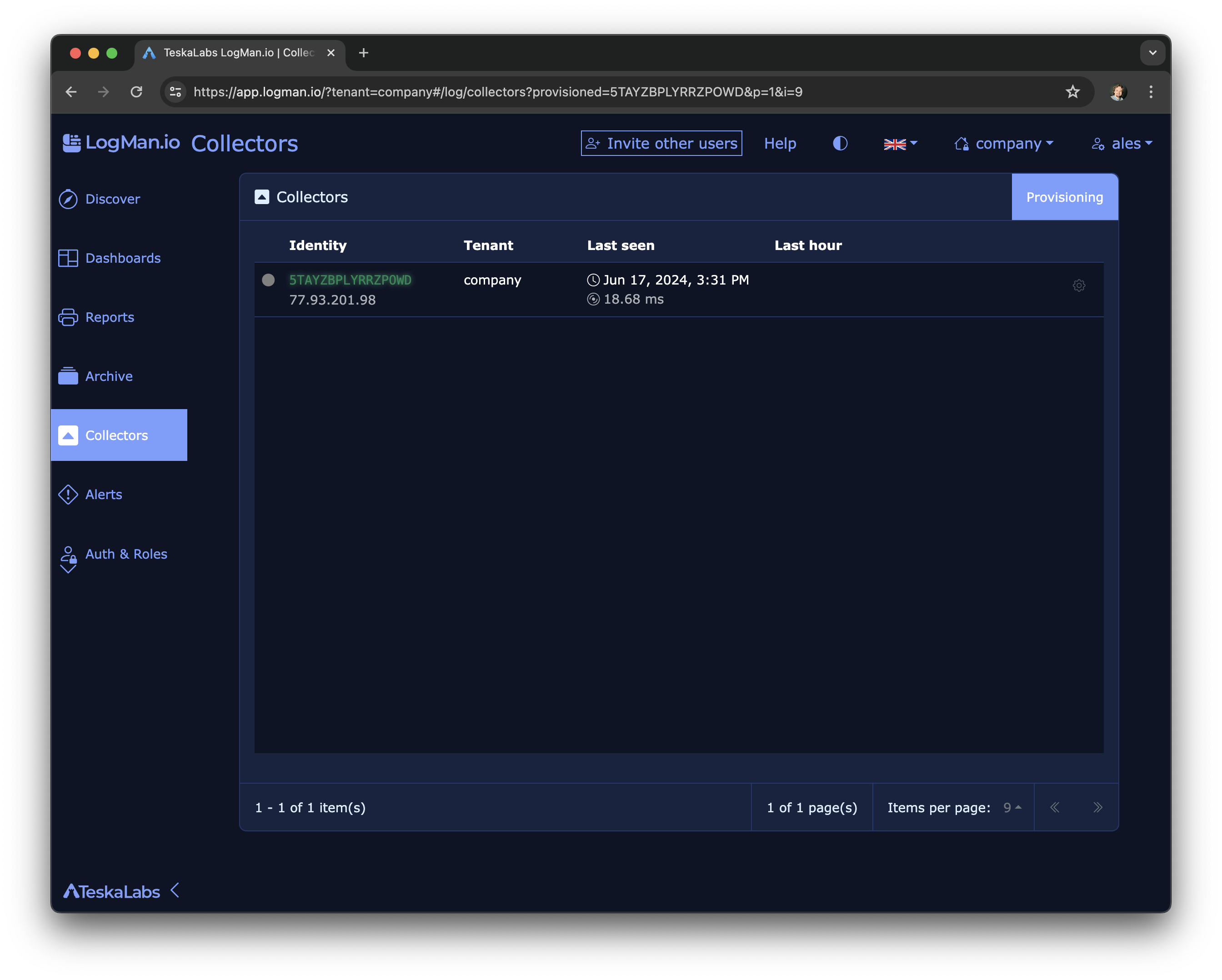
Tip
The green circle on the left indicates that the log collector is online. The blue line indicates how many logs the collector has received in the last 24 hours.
Administration inside the VM
Administrative actions in the Virtual Machine of TeskaLabs LogMan.io Collector are available in the menu. Press "M" to access it. Use arrow keys and Enter to navigate and select actions.
Available options are:
- Power down
- Reboot
- Network configuration
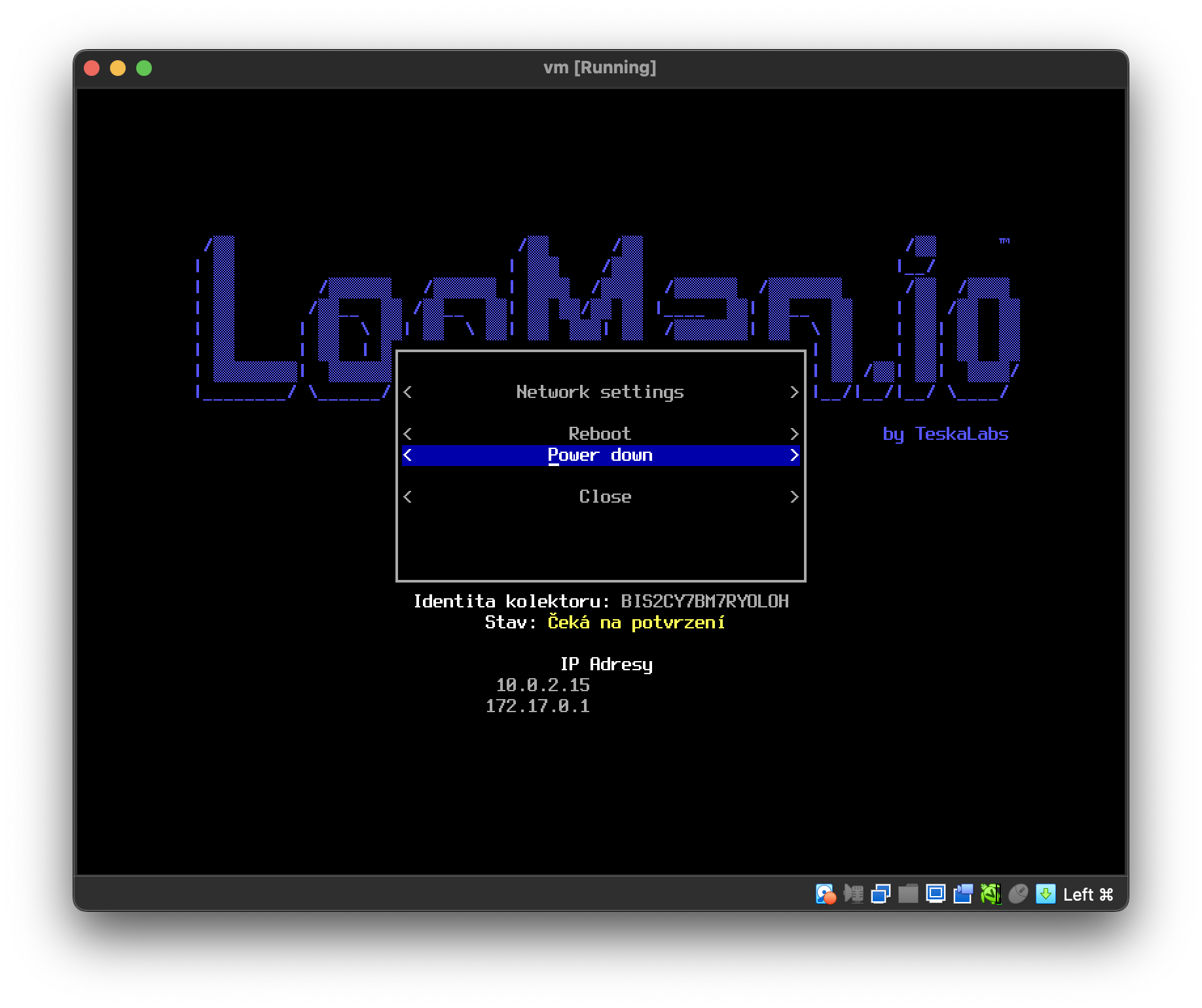
Tip
We recommend to use Power down feature to safely turn off the collector's virtual machine.
Recommended virtualization drivers
- SCSI Controller should is VirtIO
- Network device is VirtIO
Additional notes
You can connect unlimited amount of log collectors, e.g. to collect from different sources or to collect different types of logs.
Supported virtualization technologies
The TeskaLabs LogMan.io Collector supports the following virtualization technologies:
- VMWare
- Oracle VirtualBox
- Microsoft Hyper-V
- Qemu