Collecting from Microsoft Windows using WEC/WEF
The agent-less Windows Event Collector (WEC) sends logs from Windows computers via the Windows Event Forwarding (WEF) service to TeskaLabs LogMan.io Collector. The TeskaLabs LogMan.io Collector then acts as a Windows Event Collector (WEC). The WEF configuration can be deployed using Group Policy, either centrally managed by the Active Directory server or using Local Group Policy. With Active Directory in place, there are no additional configuration requirements on individual Windows machines.

Schema: Event flow of WEC/WEF collection in TeskaLabs LogMan.io.
Prerequisites
- Microsoft Active Directory Domain Controller, in this example providing domain name
domain.int/DOMAIN.int - TeskaLabs LogMan.io Collector, in this example with IP address
10.0.2.101and hostnamelmio-collector, running in the same network as Windows computes, including Active Directory - The IP address of the TeskaLabs LogMan.io Collector MUST be fixed (ie. reserved by a DHCP server)
- Date and time of the TeskaLabs LogMan.io Collector MUST be NTP synchronized
- TeskaLabs LogMan.io Collector SHOULD use the DNS server of the Active Directory
- TeskaLabs LogMan.io Collector MUST be able to resolve the hostnames of Domain Controller servers of the Active Directory
- TeskaLabs LogMan.io Collector MUST be able to reach
udp/88andtcp/88ports (Kerberos version 5 authentication) on Microsoft Active Directory Domain Controller, respective KDC - All Microsoft Windows stations and servers MUST be able to reach TeskaLabs LogMan.io Collector's
tcp/5985andtcp/5986for WEF andudp/88,tcp/88(Kerberos authentication) ports
Tip
This setup utilizes Kerberos authentication. Kerberos authentication uses Active Directory domain-specific Kerberos tickets issued by the domain controller for authentication and encryption of the log forwarding. It is the optimal choice for Windows computers that are managed through a domain.
Active Directory
1.1. Create a new user in Active Directory
Navigate to Windows Administrative Tools > Active Directory Users and Computers > DOMAIN.int > Users
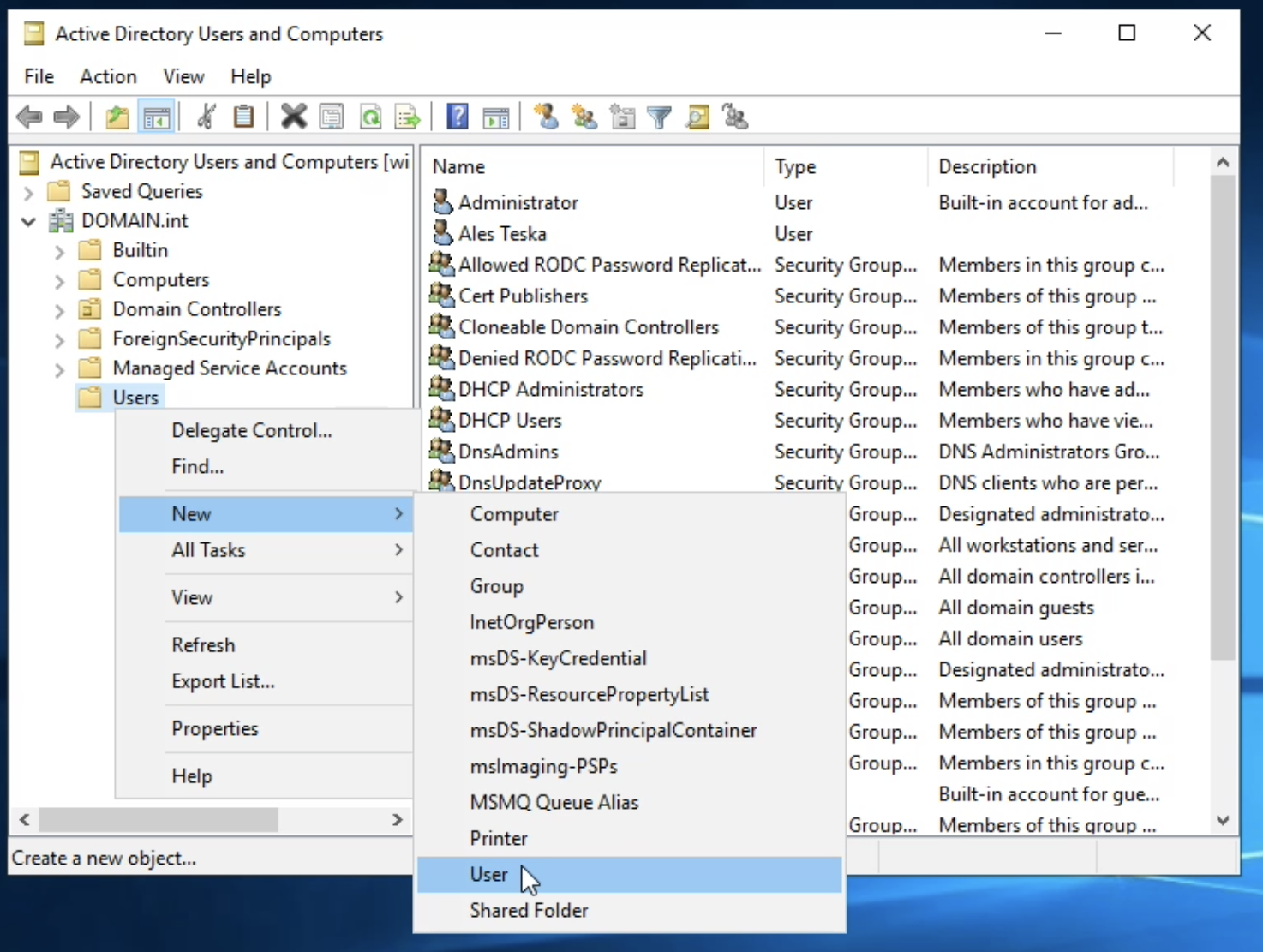
Right-click and choose New > User
Enter following information:
- Full name:
TeskaLabs LogMan.io - User logon name: Use the computer name of the TeskaLabs LogMan.io Collector, in this example
lmio-collector. You can find it in the TeskaLabs LogMan.io collector setup screen. Open Log Sources >> Collectors ** >> Your Collector >> Microsoft Windows**.

Warning
The user logon name MUST be the same as the computer name of the TeskaLabs LogMan.io Collector.
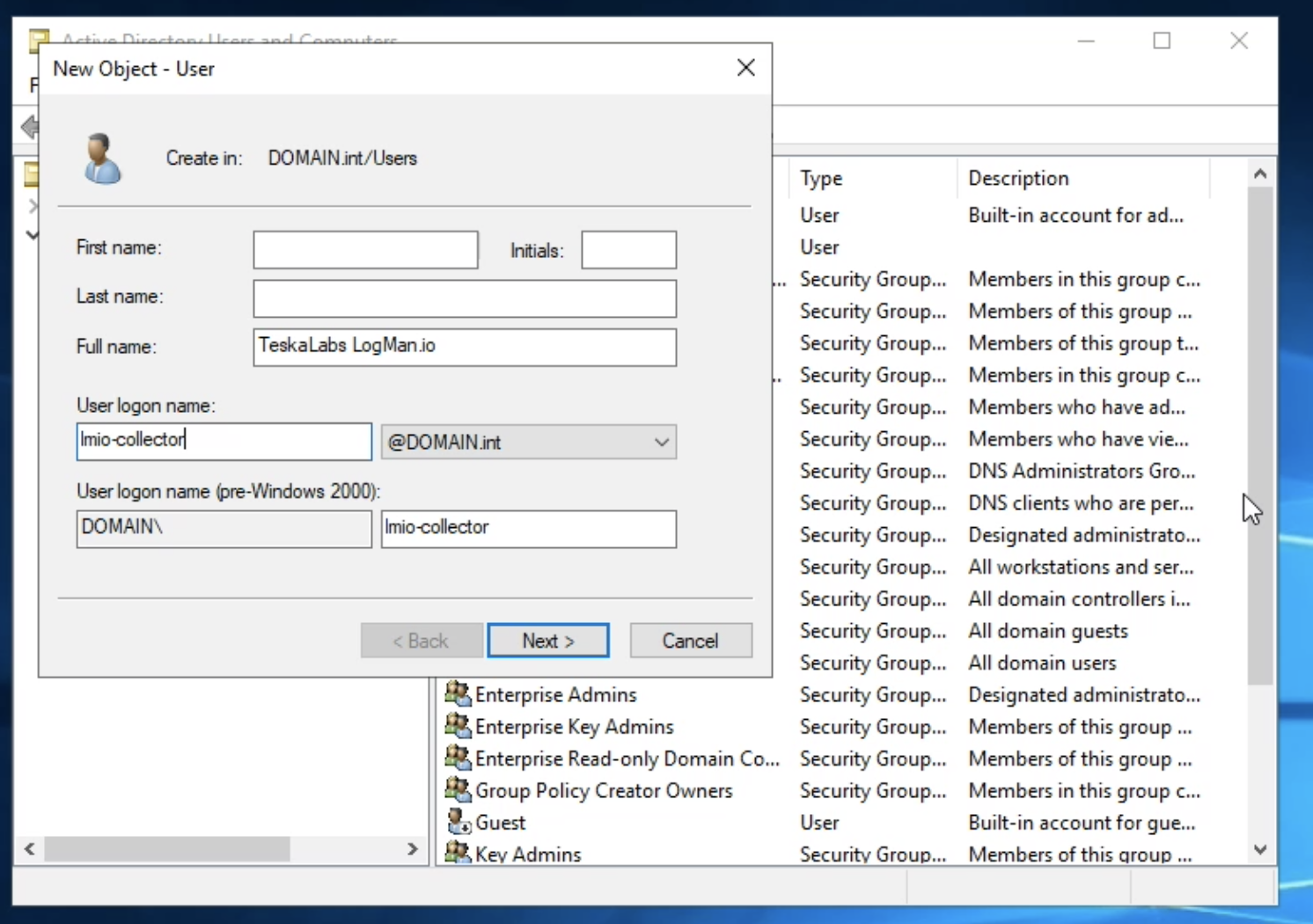
Select "Next".
Set a password for the user.
This example uses Password01!.
Warning
Use a strong password according your policy. This password will be used in later step of this procedure.
Uncheck "User must change password at next logon".
Check "Password never expires".
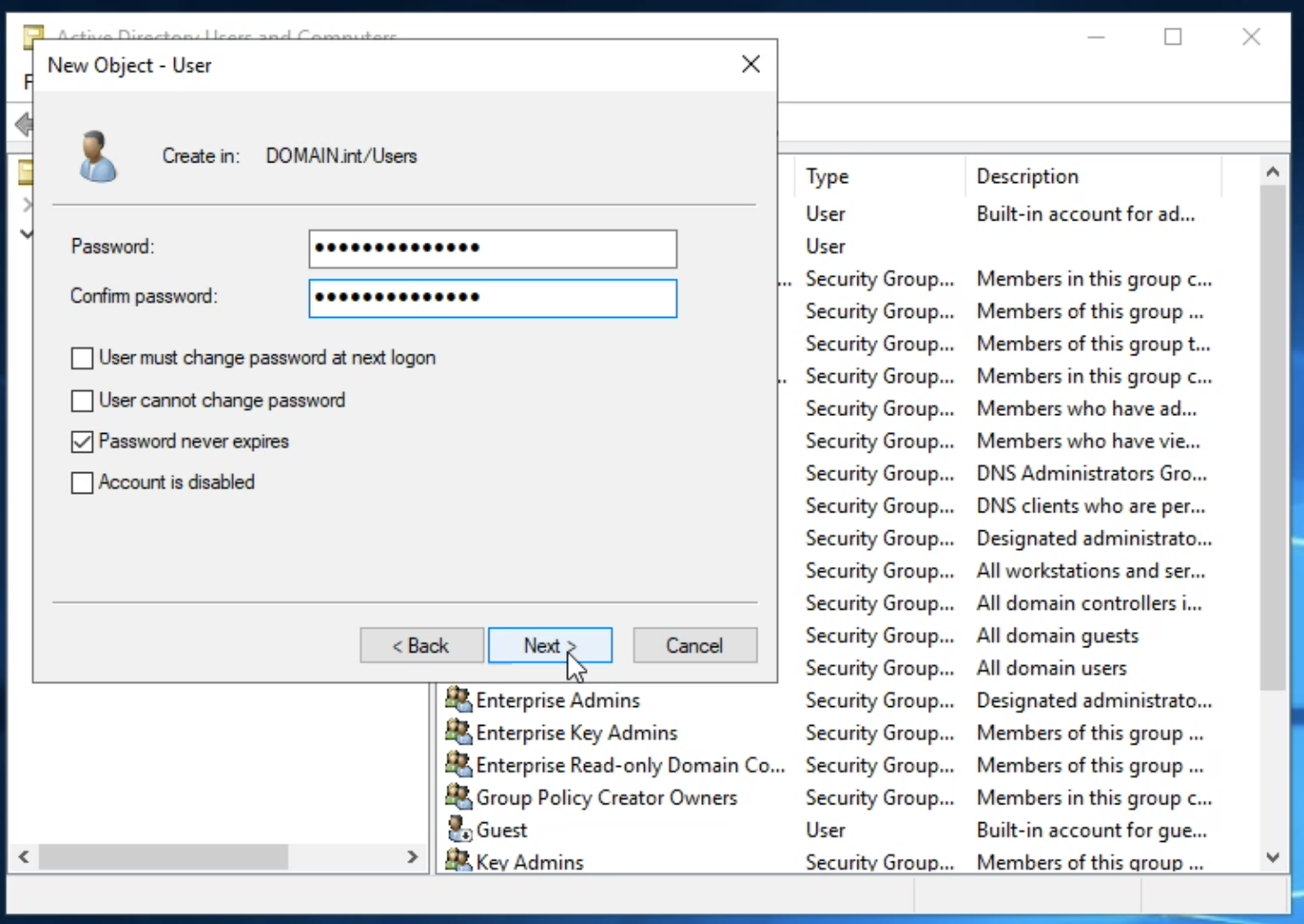
Hit Next and then Finish button to create the user.
Finally, right-click on the new user, click Properties, and open the Account tab.
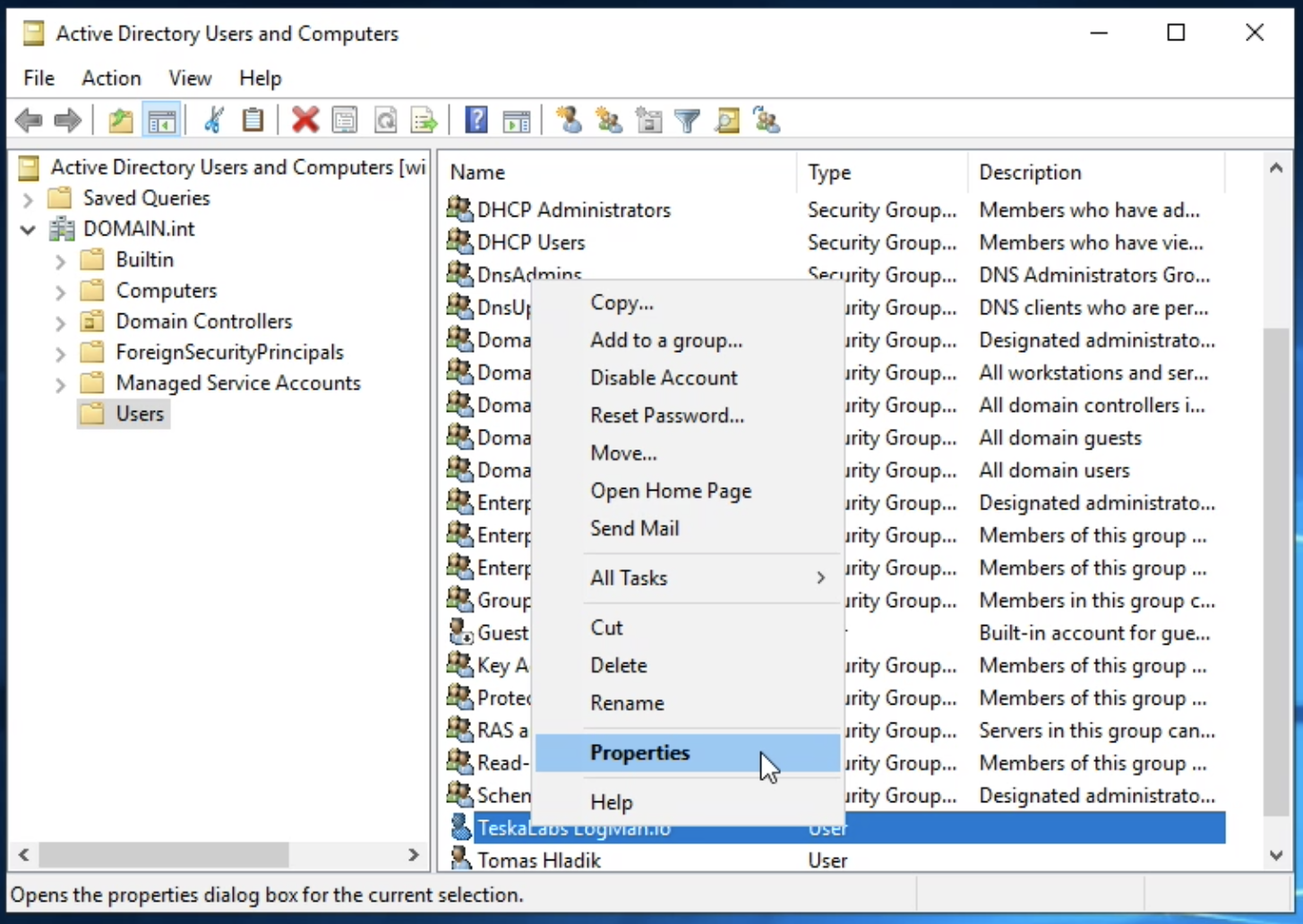
- Check "This account supports Kerberos AES 128 bit encryption".
- Check "This account supports Kerberos AES 256 bit encryption".
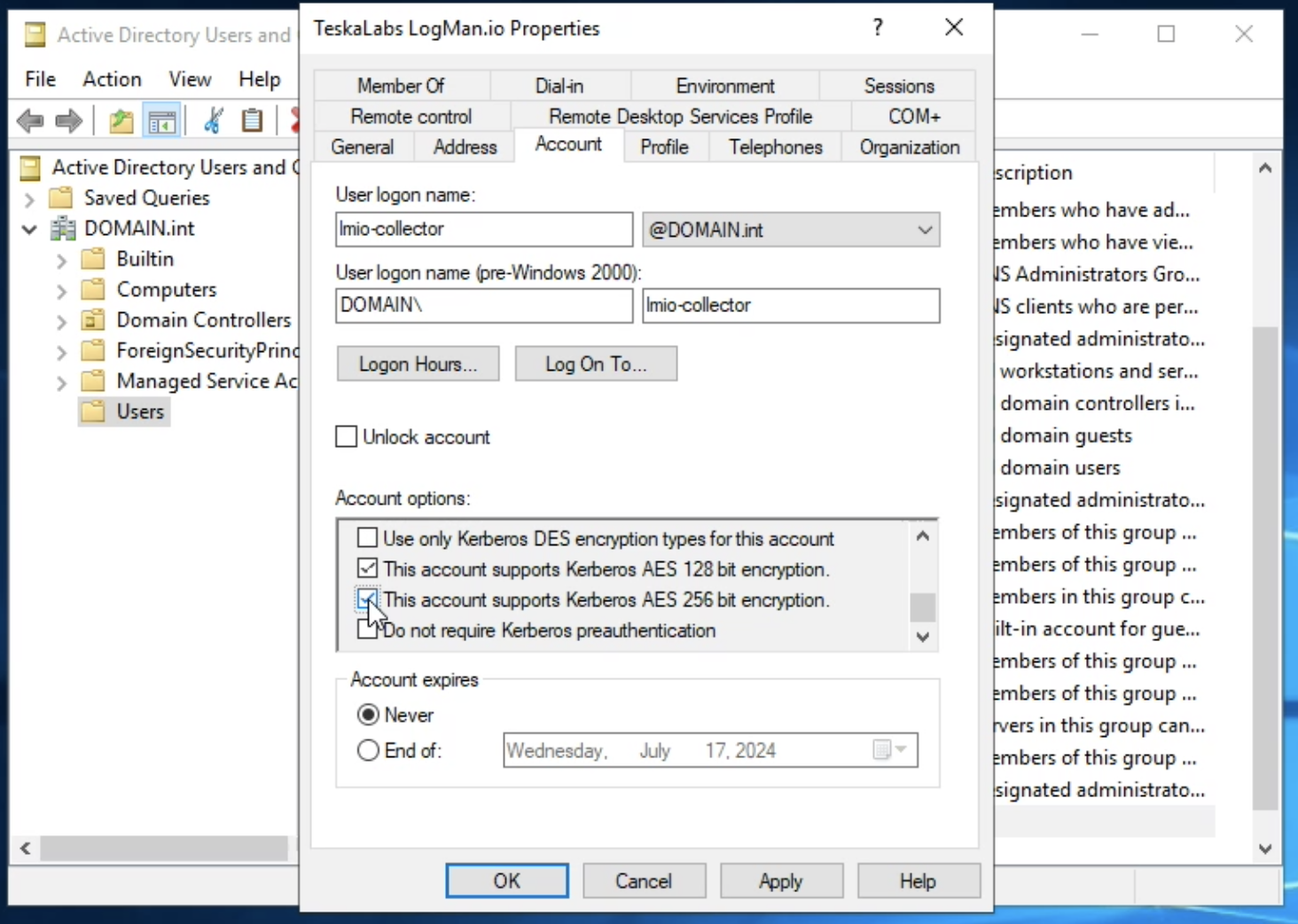
The new user lmio-collector is now ready.
1.2. Create an A record in the DNS server for TeskaLabs LogMan.io Collector
Use DHCP to reserve an IP address of the collector
A fixed IP address MUST be assigned to TeskaLabs LogMan.io Collector. This can by done by "reserving" the IP address in the Active Directory DHCP server.
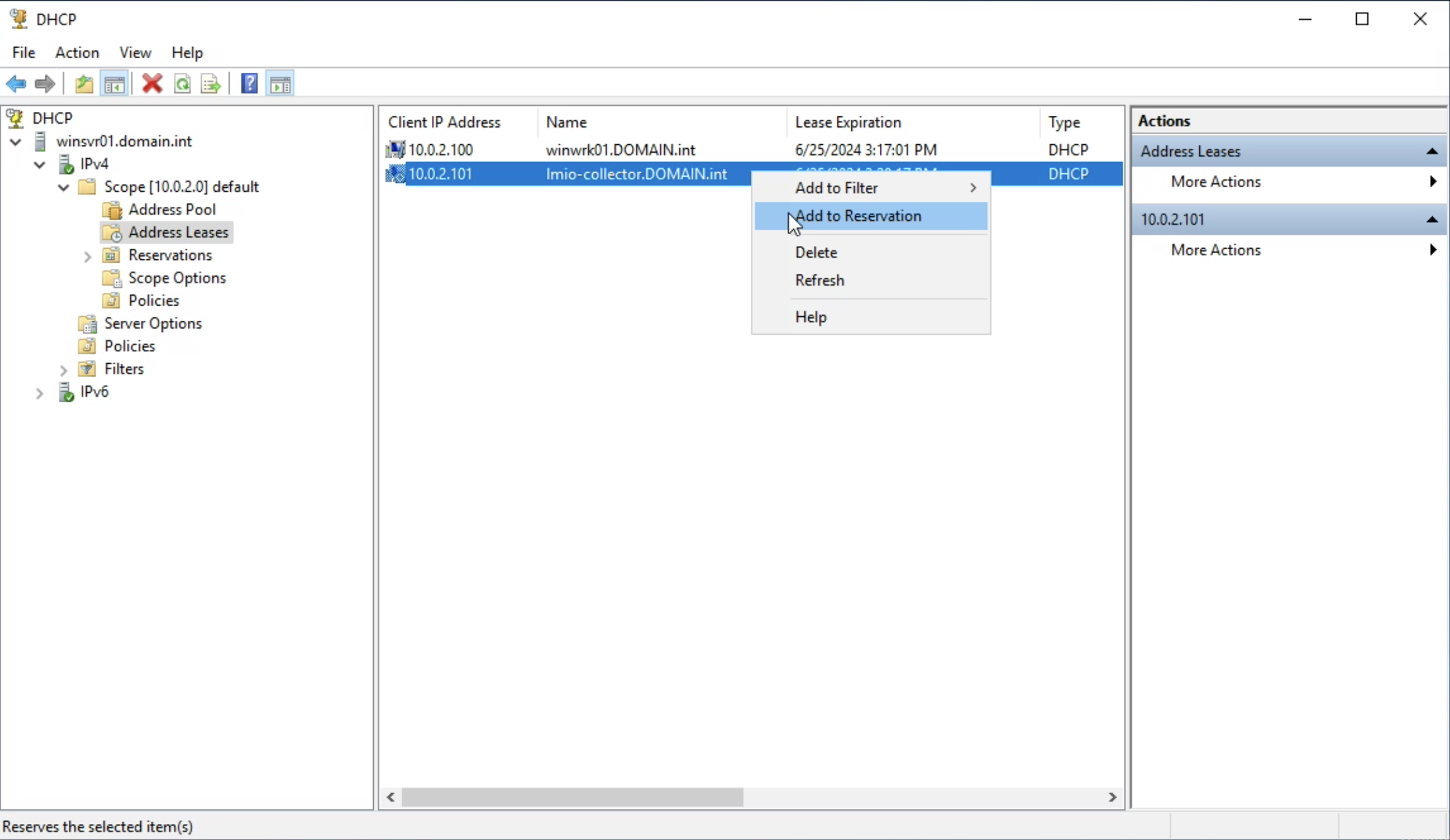
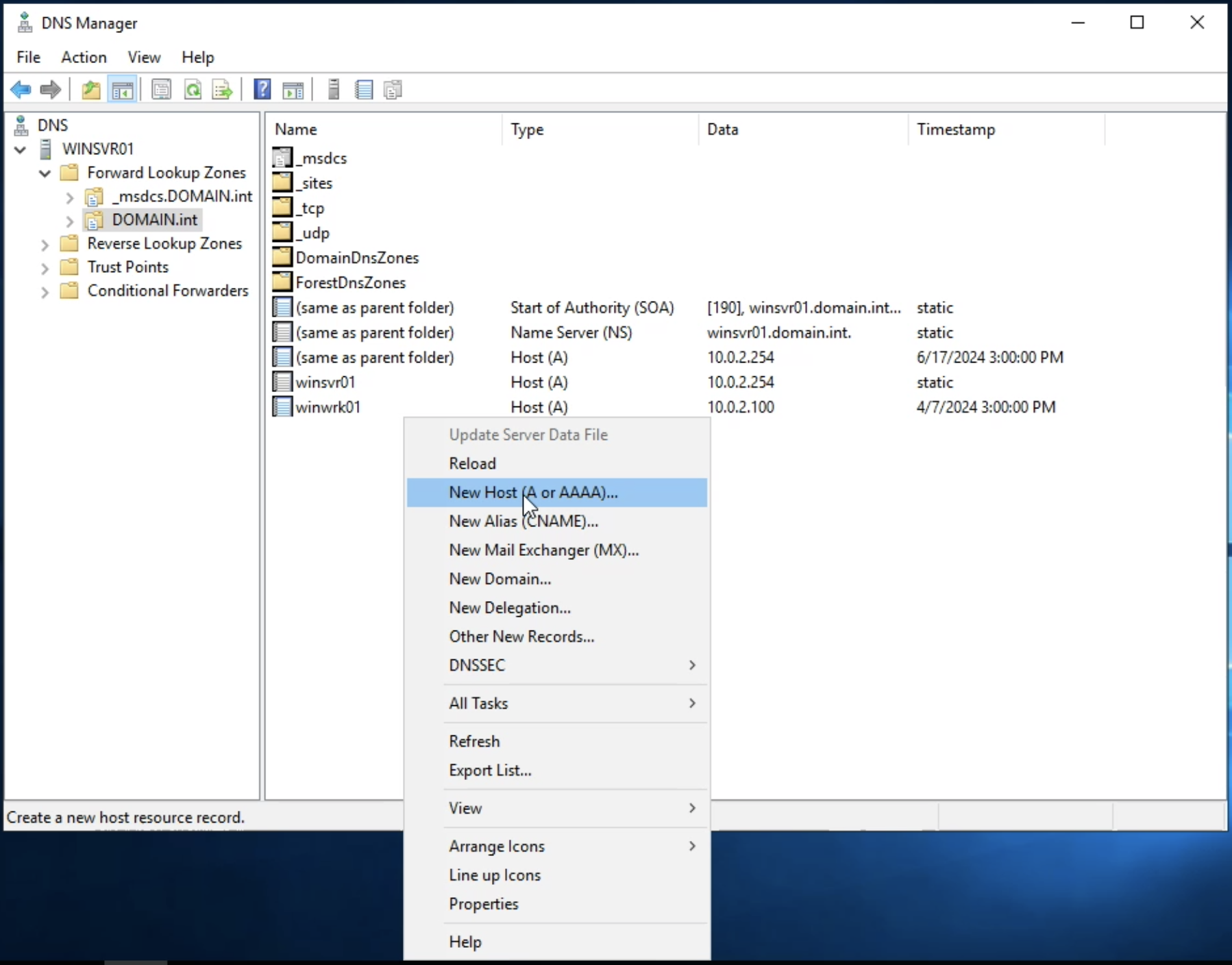
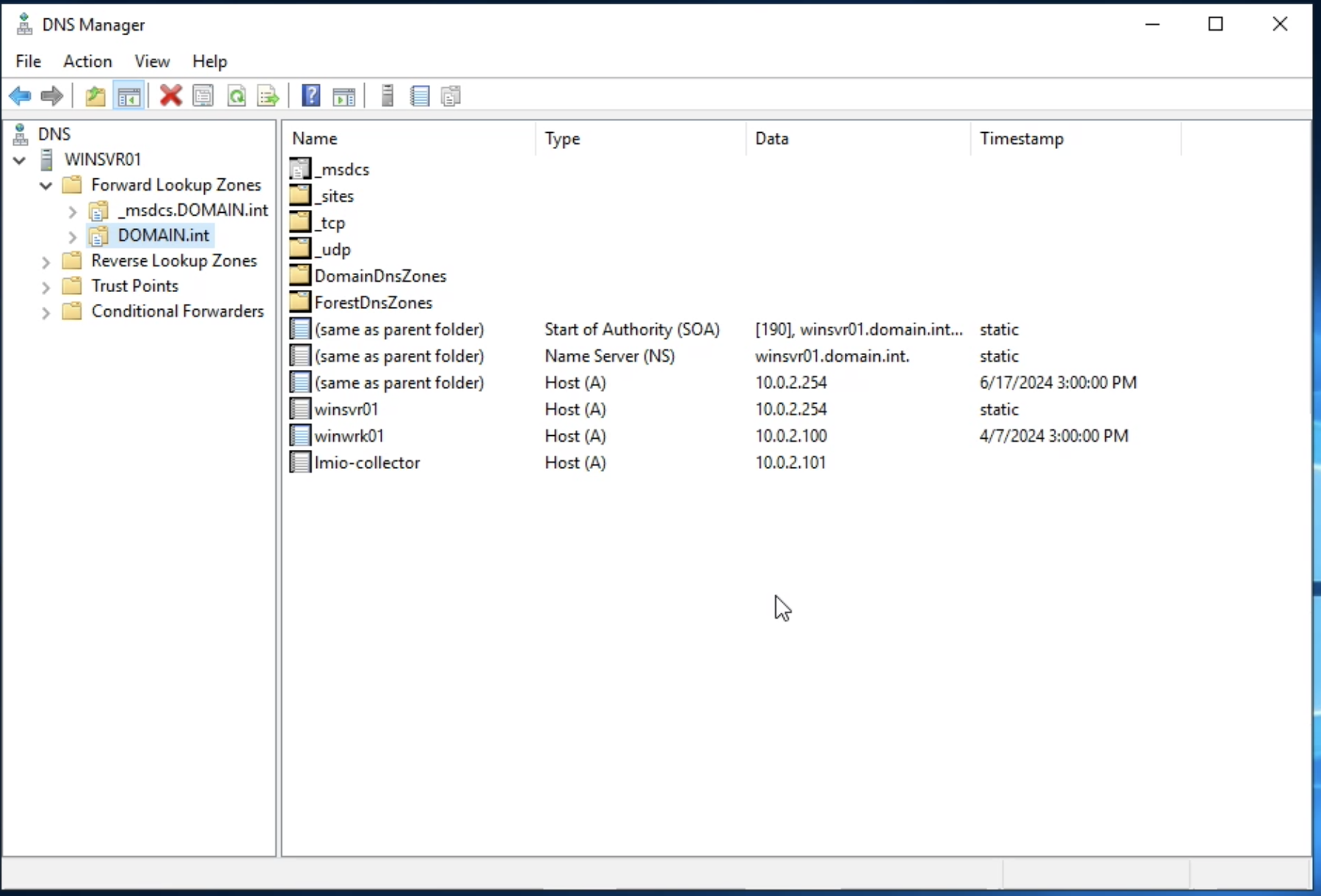
Navigate to Windows Administrative Tools > DNS > Forward Lookup Zones > DOMAIN.int
Right-click and choose "New Host (A or AAAA)…"
Add a record with a name of your collector and IP address (in this example lmio-collector and 10.0.2.101).
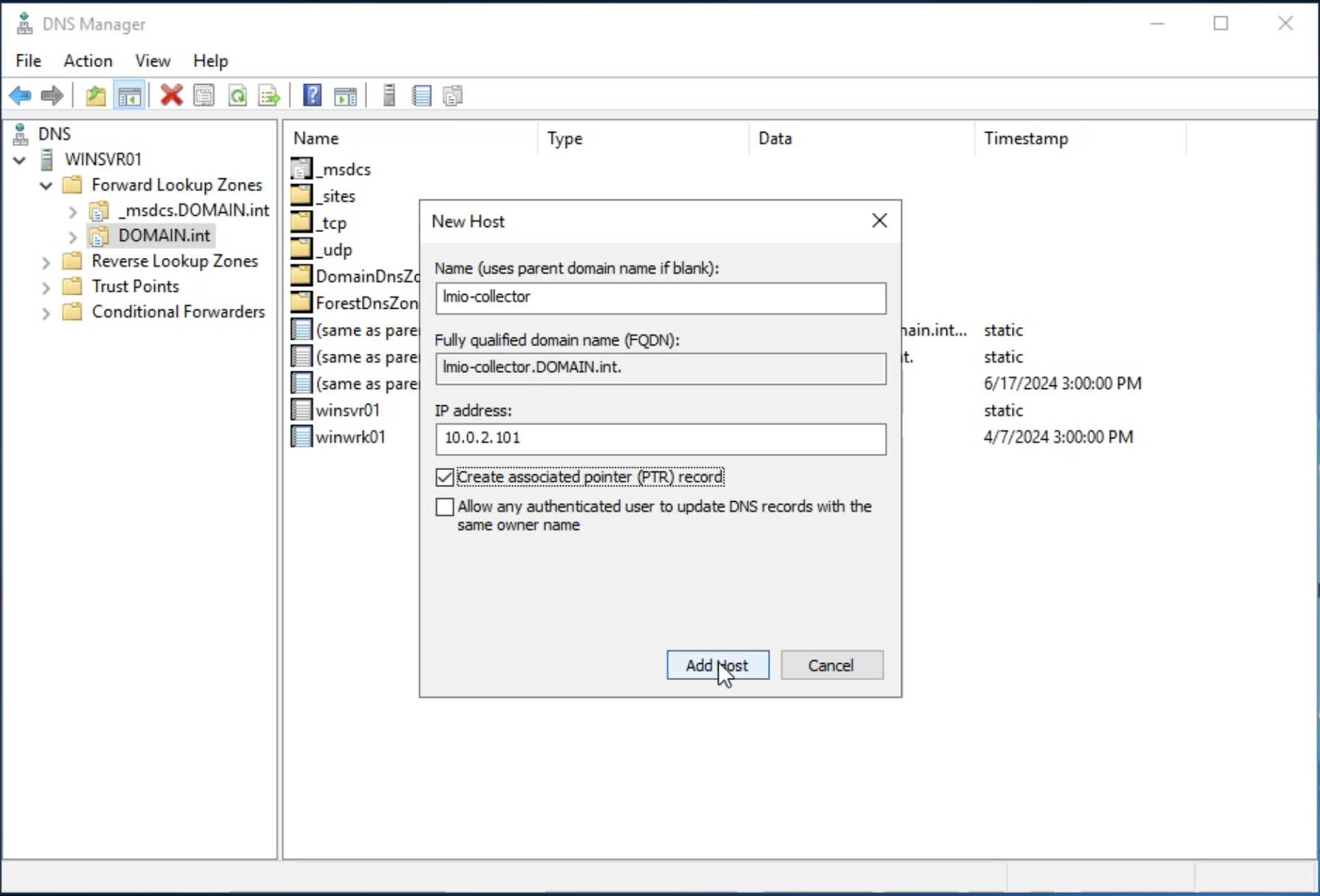
Hit Add Host button to finish.
Tip
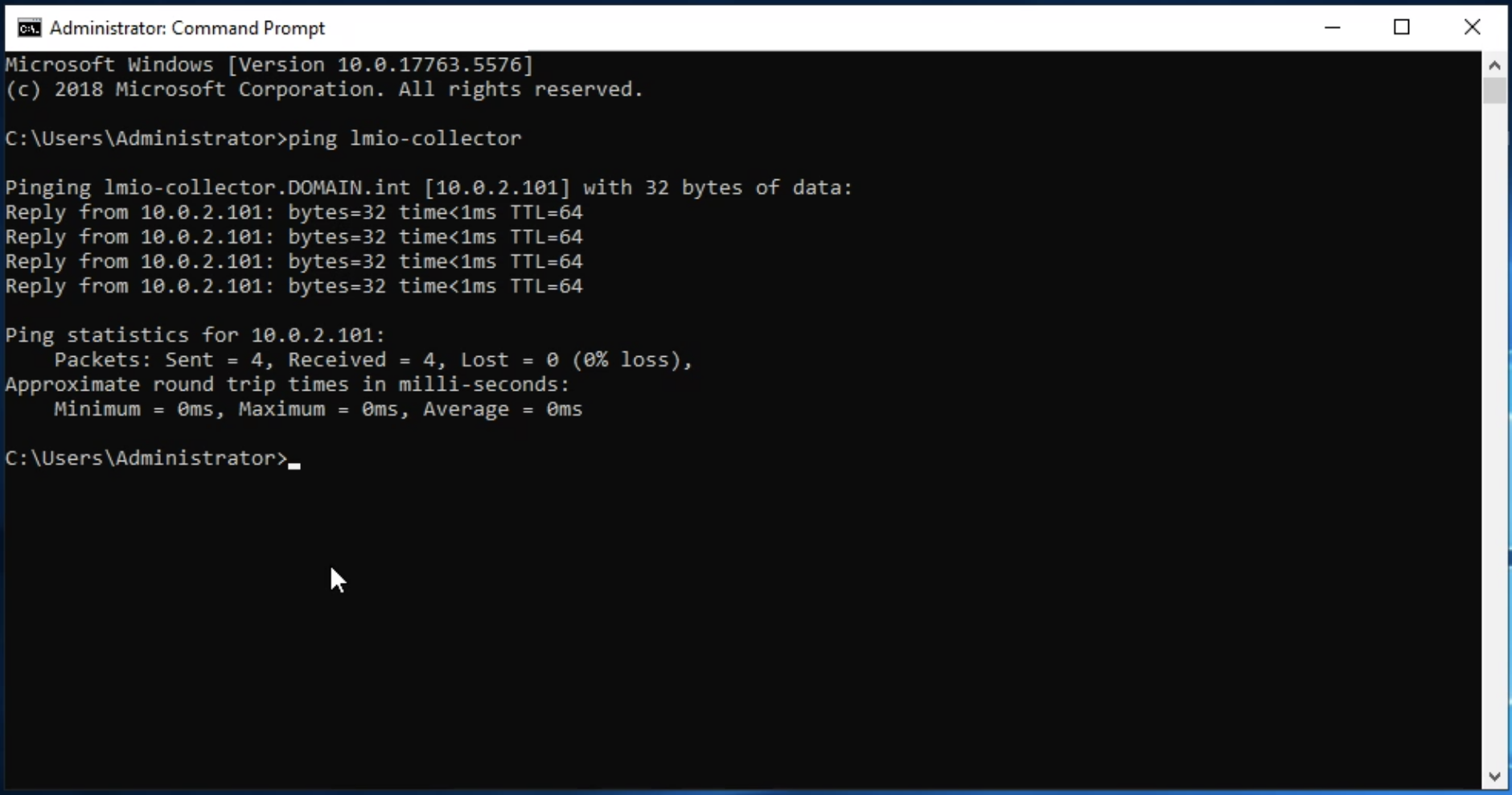
You can verify this DNS settings by ping command.
1.3. Create a host principal name
Create a host principal name and the associated keytab file for the host of the TeskaLabs LogMan.io Collector. Execute the following command on the Active Directory Domain Controller Server's command prompt (cmd.exe):
ktpass /princ host/lmio-collector.domain.int@DOMAIN.INT /pass Password01! /mapuser DOMAIN\lmio-collector -pType KRB5_NT_PRINCIPAL /out host-lmio-collector.keytab /crypto AES256-SHA1
Process is case-sensitive
Make sure to CAPITALIZE anything you see capitalized in our examples (such as host/lmio-collector.domain.int@DOMAIN.INT).
It has to be CAPITALIZED even if your domain contains lowercase letters.
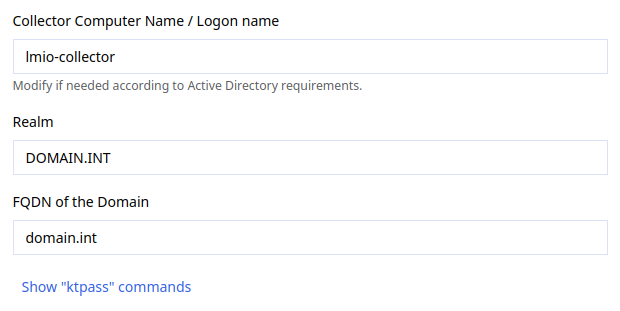
ktpass commands in TeskaLabs LogMan.io Collector
You can find ktpass commands in the Collector setup screen. Fill in the Collector Computer Name, Realm, and Domain Controller FQDN fields, and the commands will be generated for you.
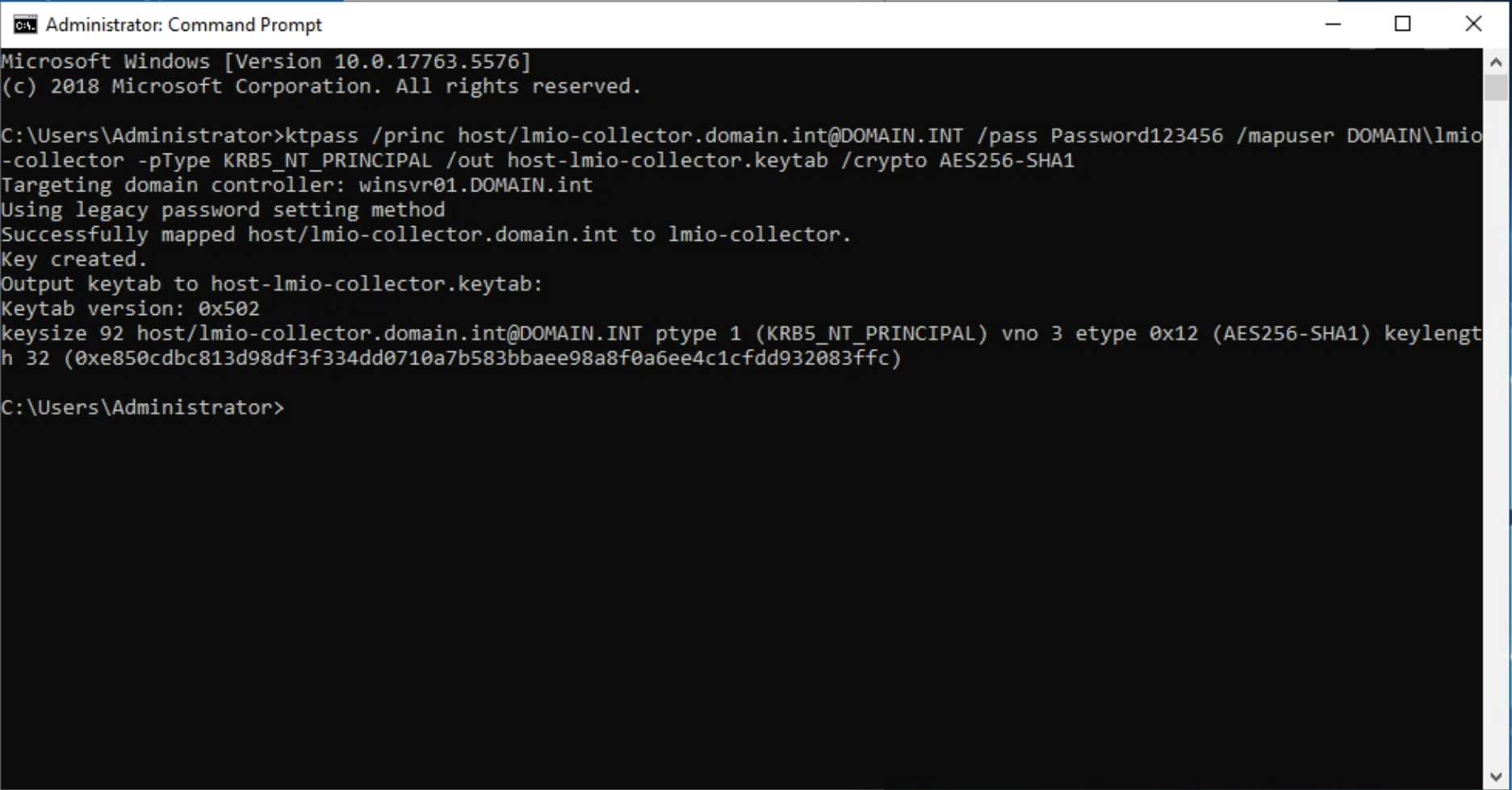
The keytab file host-lmio-collector.keytab is created.
1.4. Create a http principal name
Create a service principal name and the associated keytab file for a service:
ktpass /princ http/lmio-collector.domain.int@DOMAIN.INT /pass Password01! /mapuser DOMAIN\lmio-collector -pType KRB5_NT_PRINCIPAL /out http-lmio-collector.keytab /crypto AES256-SHA1
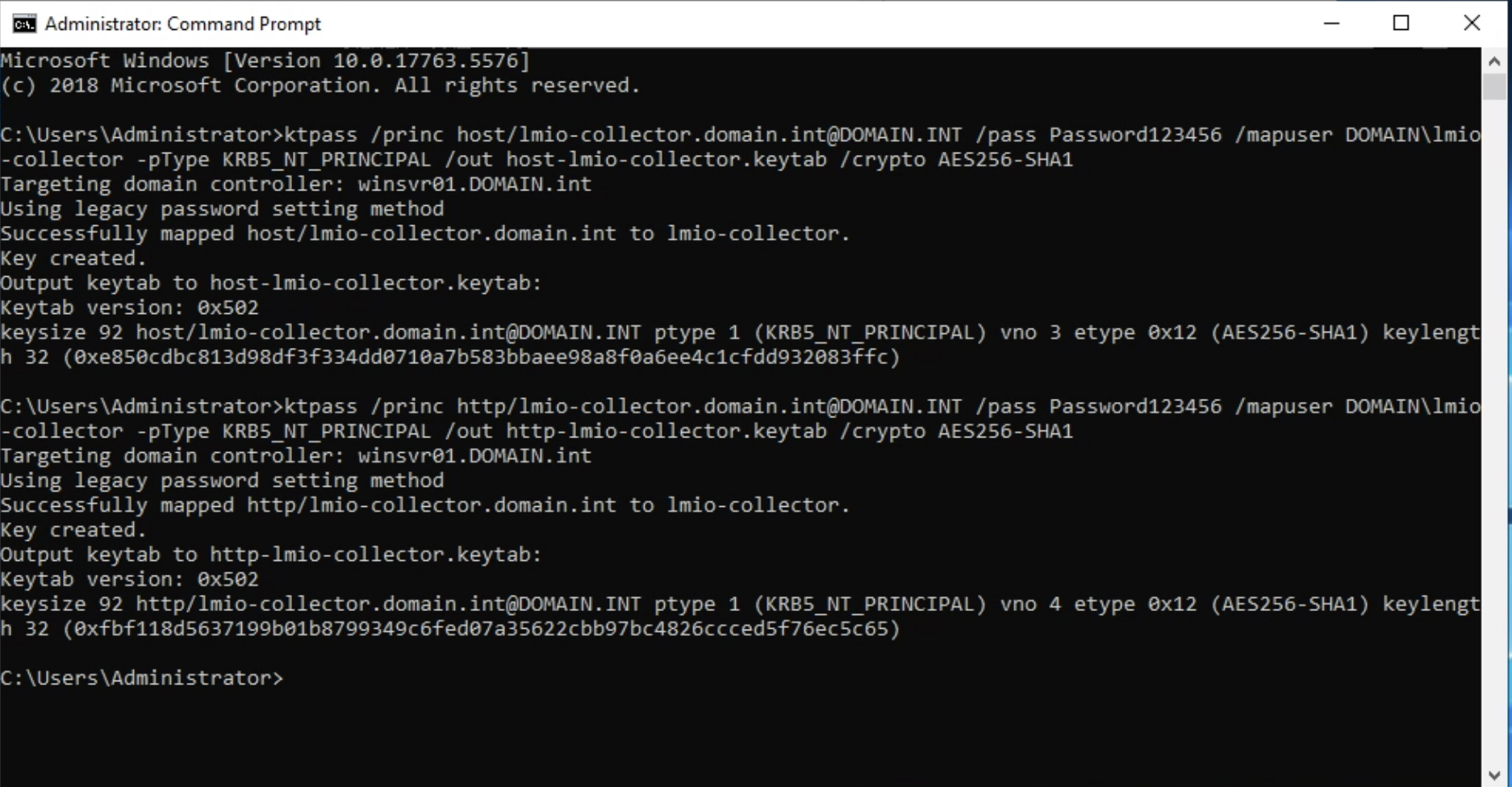
The keytab file http-lmio-collector.keytab is created.
1.5. Collect key tab files from the Windows Server
Collect two keytab files from above. You'll upload them into TeskaLabs LogMan.io in a later step.
Group Policy
Danger
Don't connect a large Windows fleet at once. it may overload your network, especially when available bandwidth is limited. When Windows machines first connect, they may send buffered events simultaneously, causing traffic spikes. Create a plan for gradual onboarding with a maximum of 50 machines at a time, and monitor your network throughput during the rollout.
2.1. Open the Group Policy Management Console
Navigate to Windows Administrative Tools > Group Policy Management, select your domain, DOMAIN.int in this example.
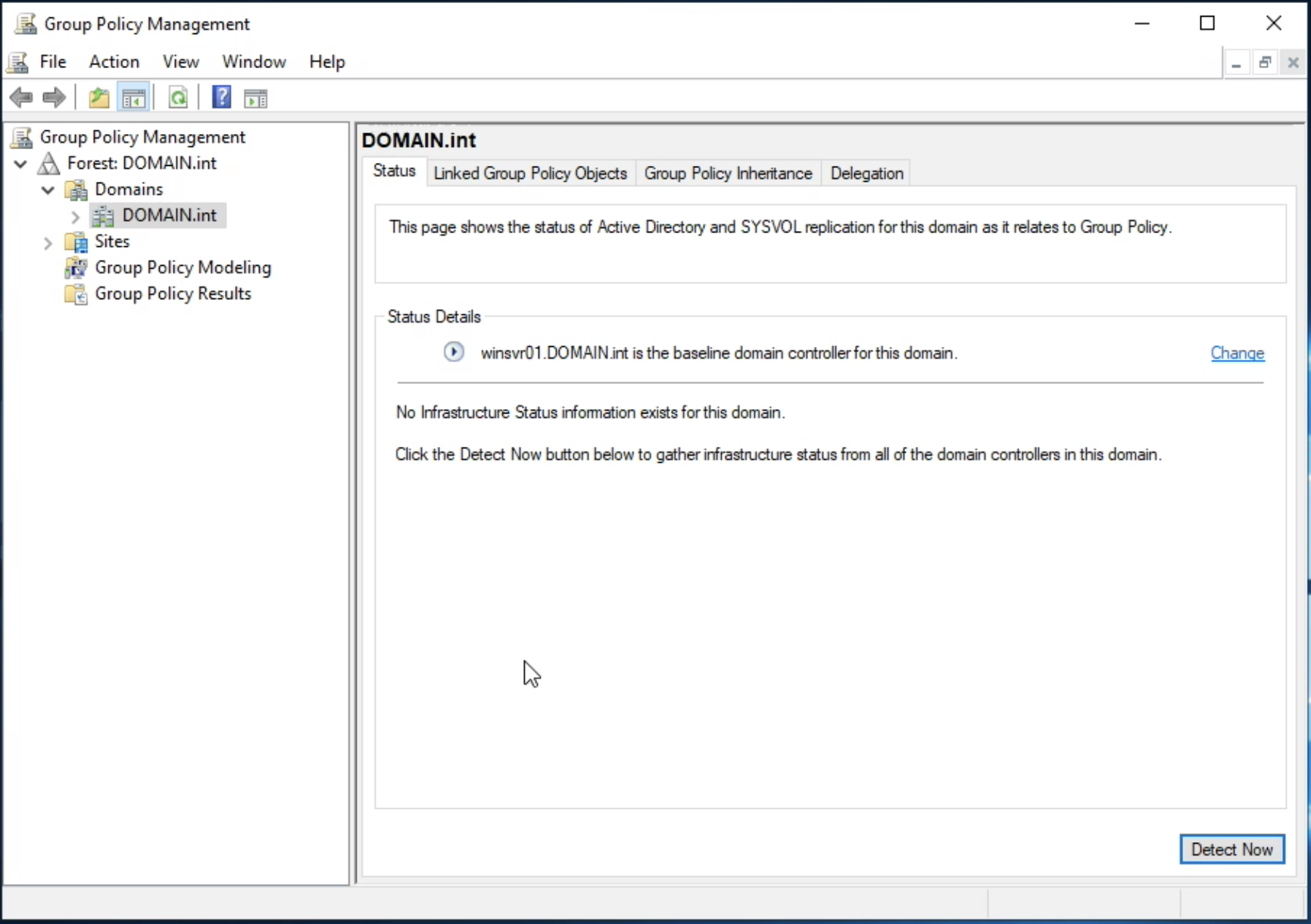
2.2. Create Group Policy Object
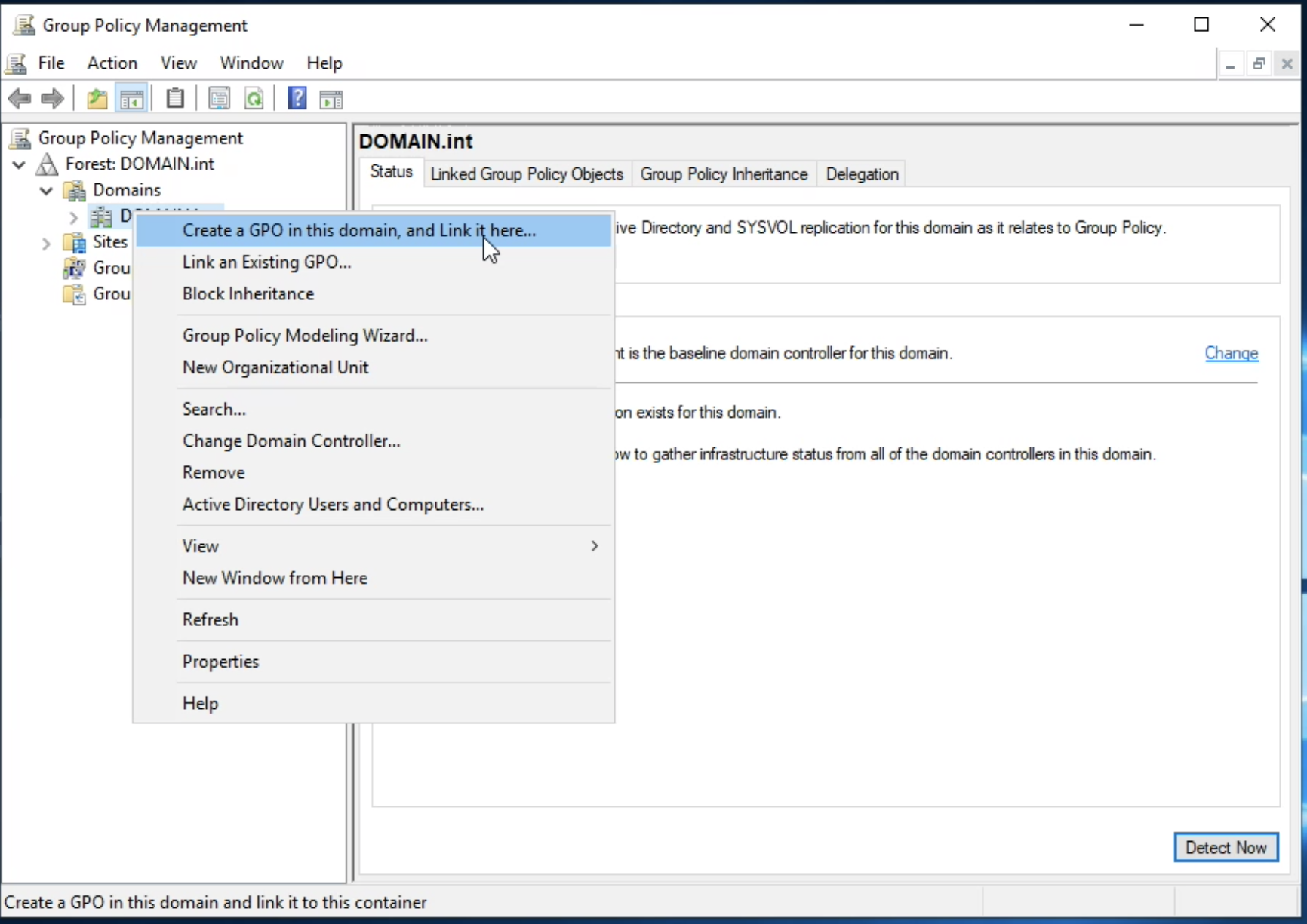
In the Group Policy Management console, select your domain, such as DOMAIN.int.
Right-click the domain and choose "Create a GPO in this domain, and Link it here....
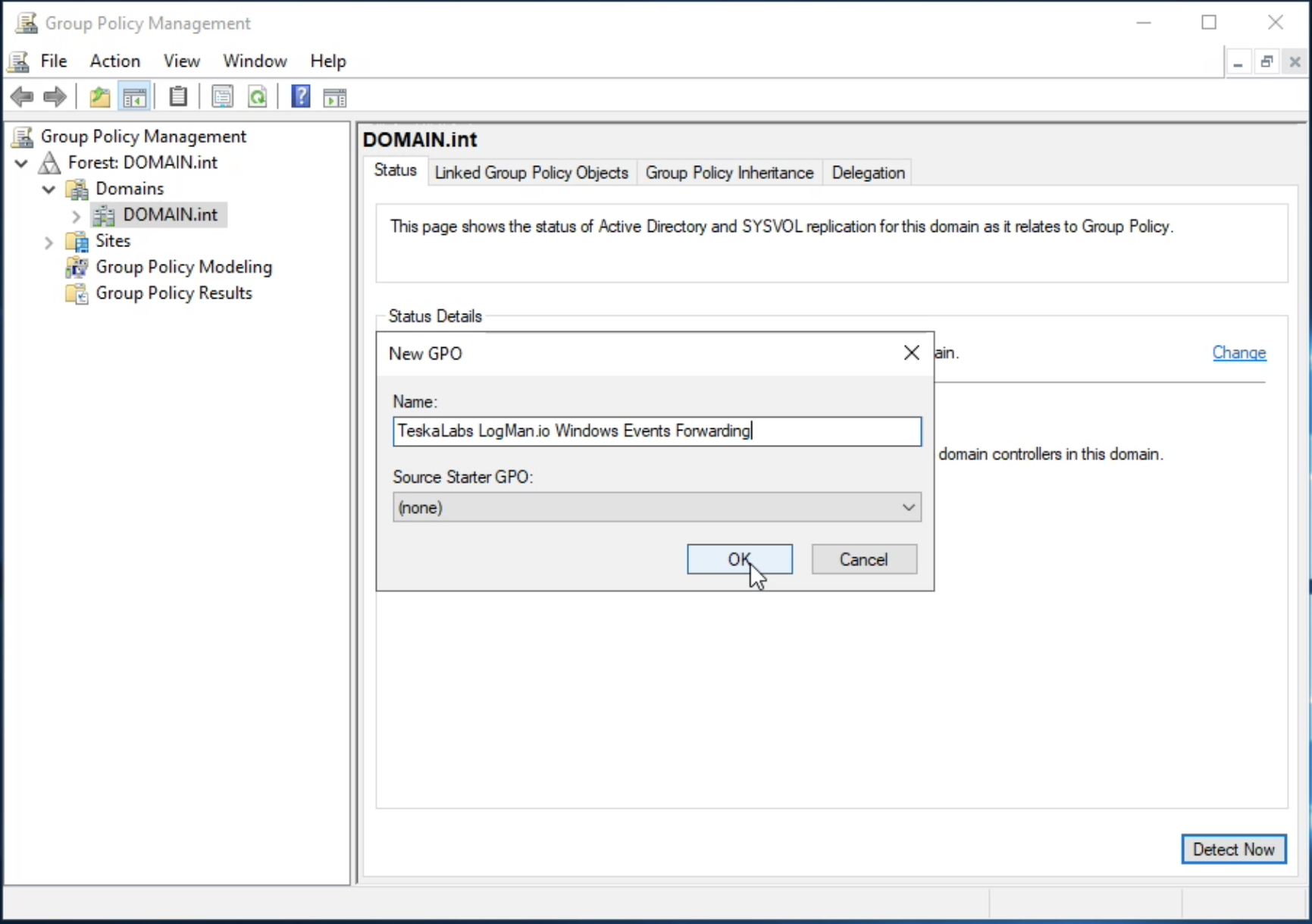
Specify a name for the new GPO, "TeskaLabs LogMan.io Windows Event Forwarding", then select OK.
2.3. Configure Group Policy Object
The new GPO is created and linked to your domain. To configure the policy settings, right-select the created GPO and choose "Edit...".

The "Group Policy Management Editor" opens to let you customize the GPO.
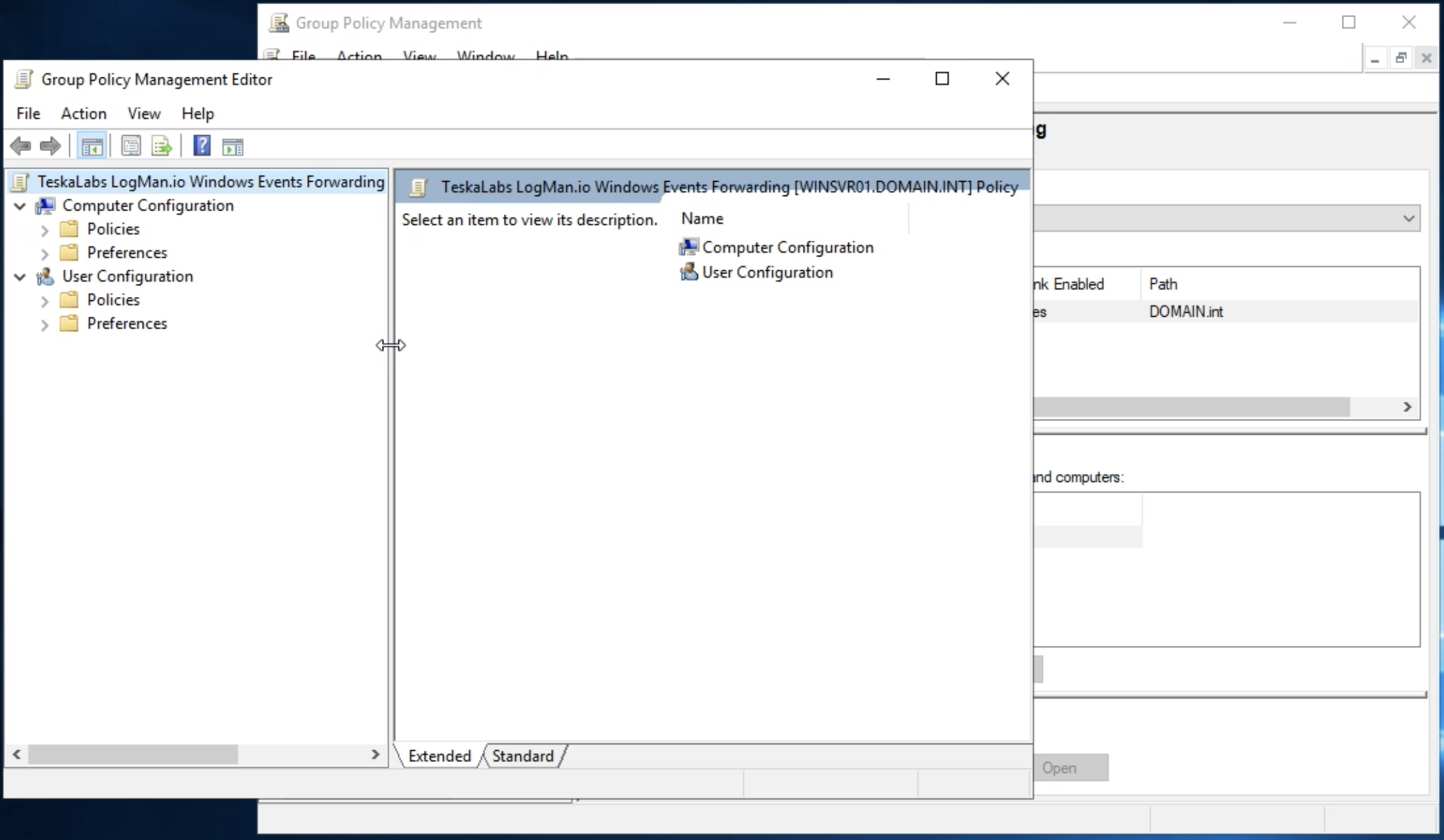
2.4. Configure Event Forwarding Policy under Computer Configuration section
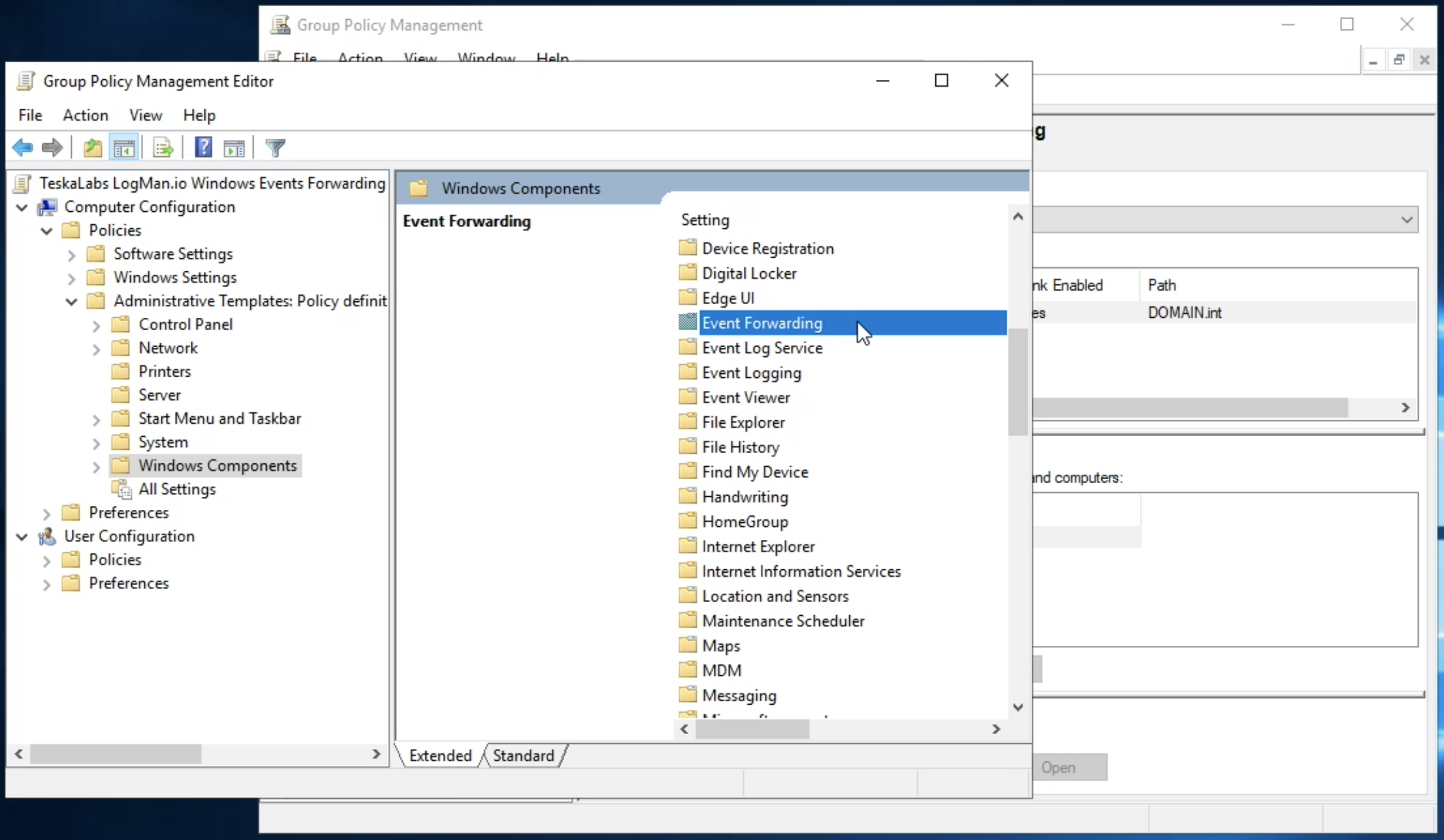
In the "Group Policy Management Editor", navigate to Computer Configuration > Policies > Administative Templates > Windows Compontents and select Event Forwarding.
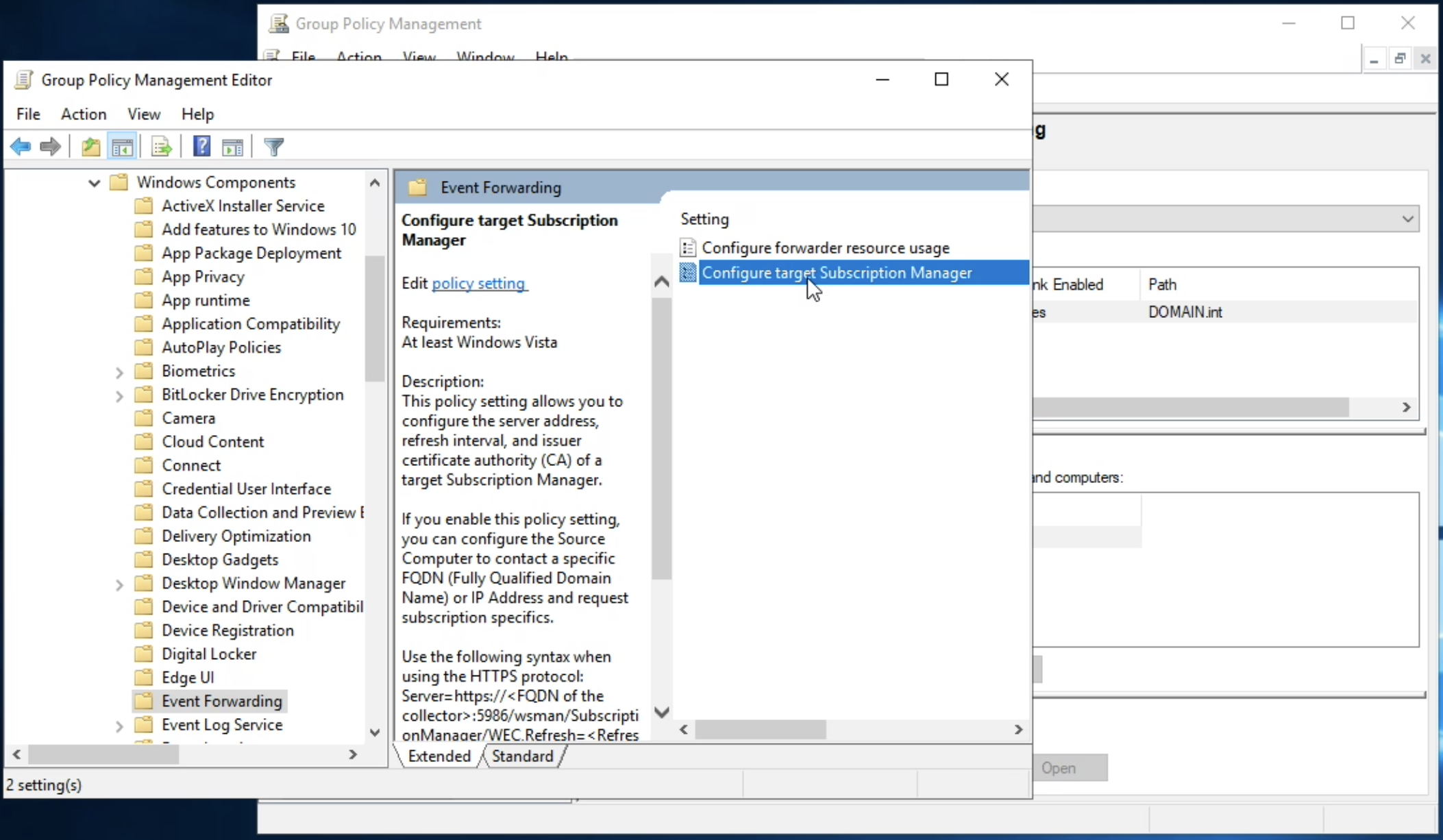
Select "Configure target Subscription Manager".
Enable the setting and select Show.
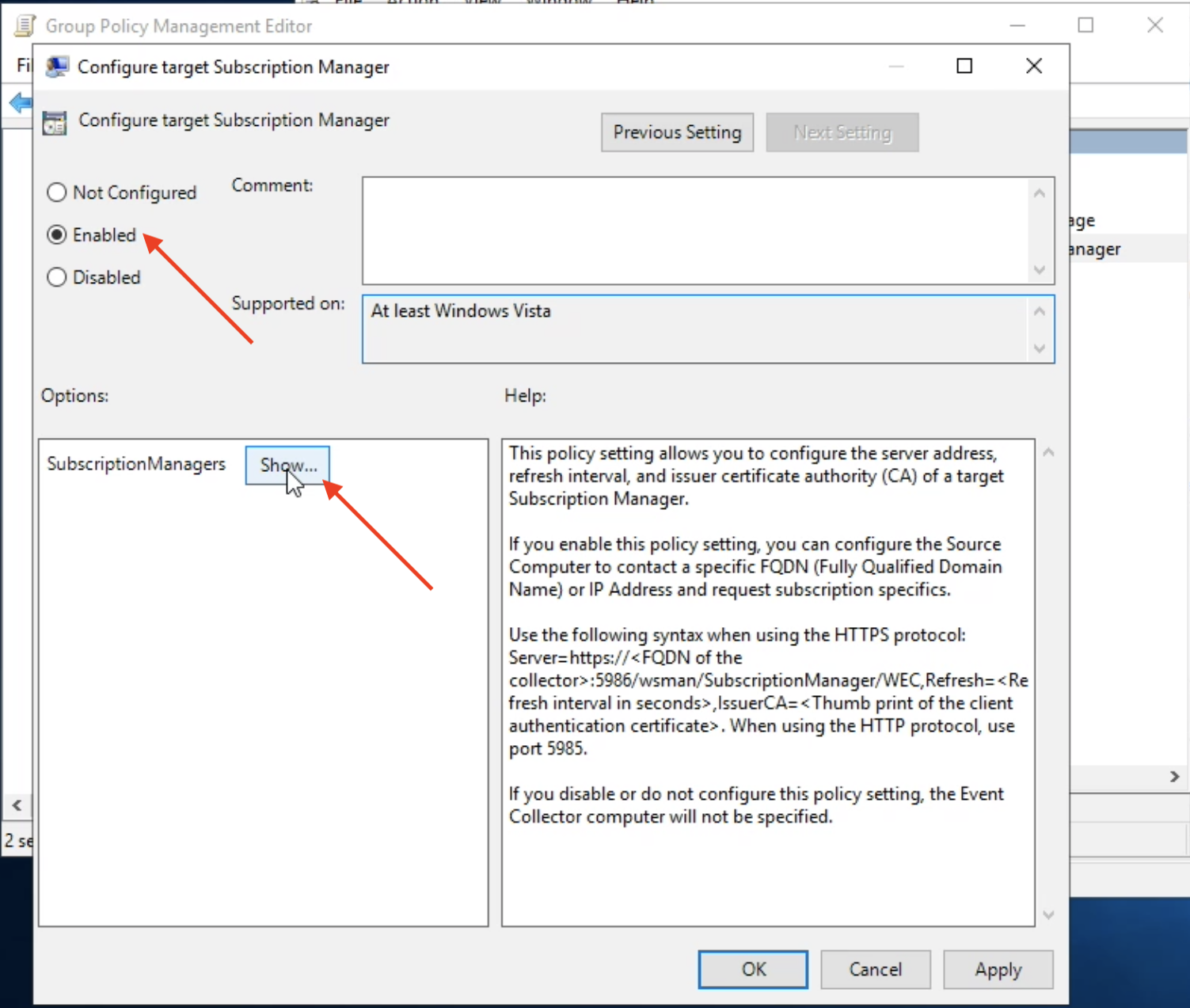
Fill in the location of the TeskaLabs LogMan.io Collector:
Server=http://lmio-collector.domain.int:5985/wsman/SubscriptionManager/WEC,Refresh=60
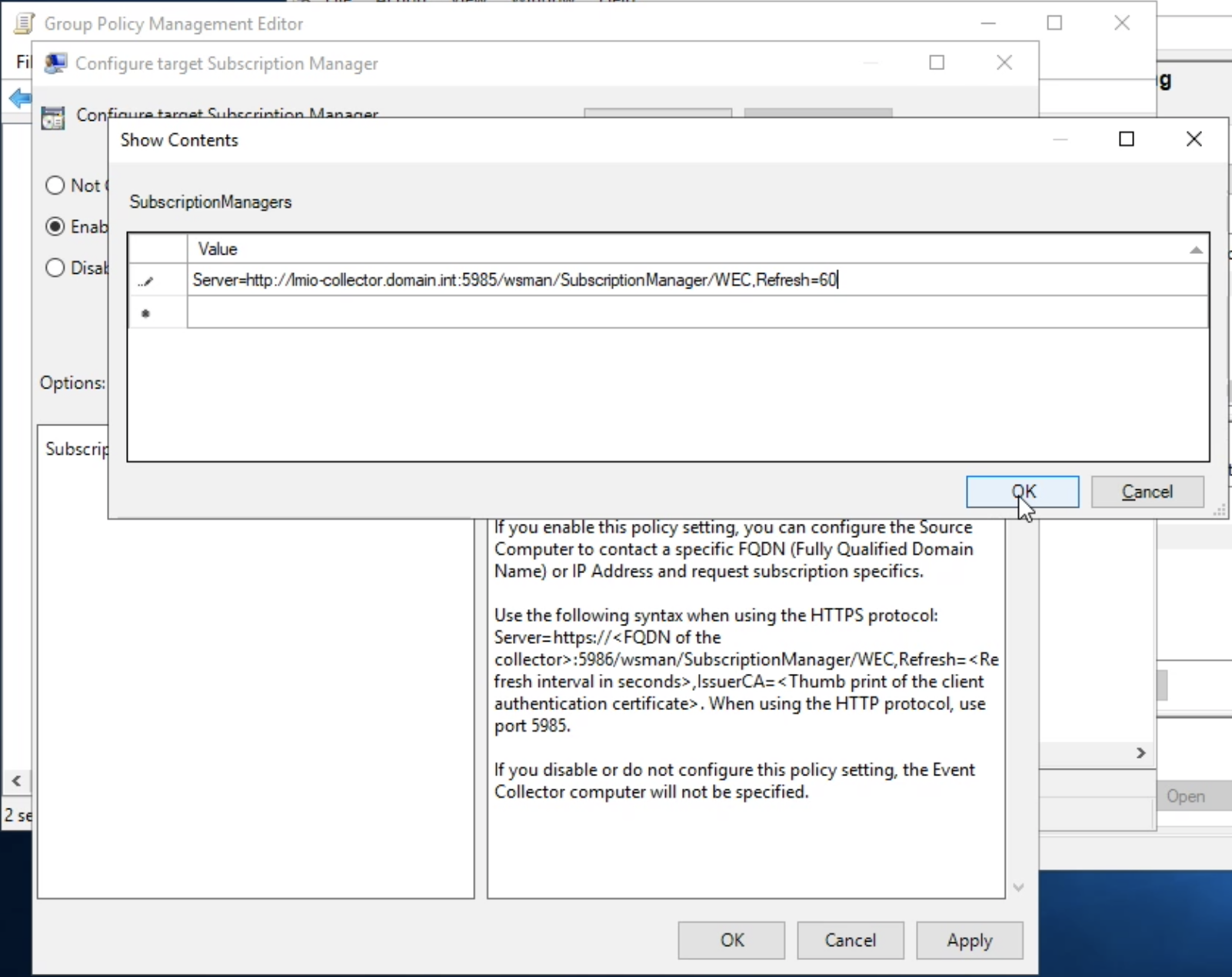
Press OK to apply the settings.
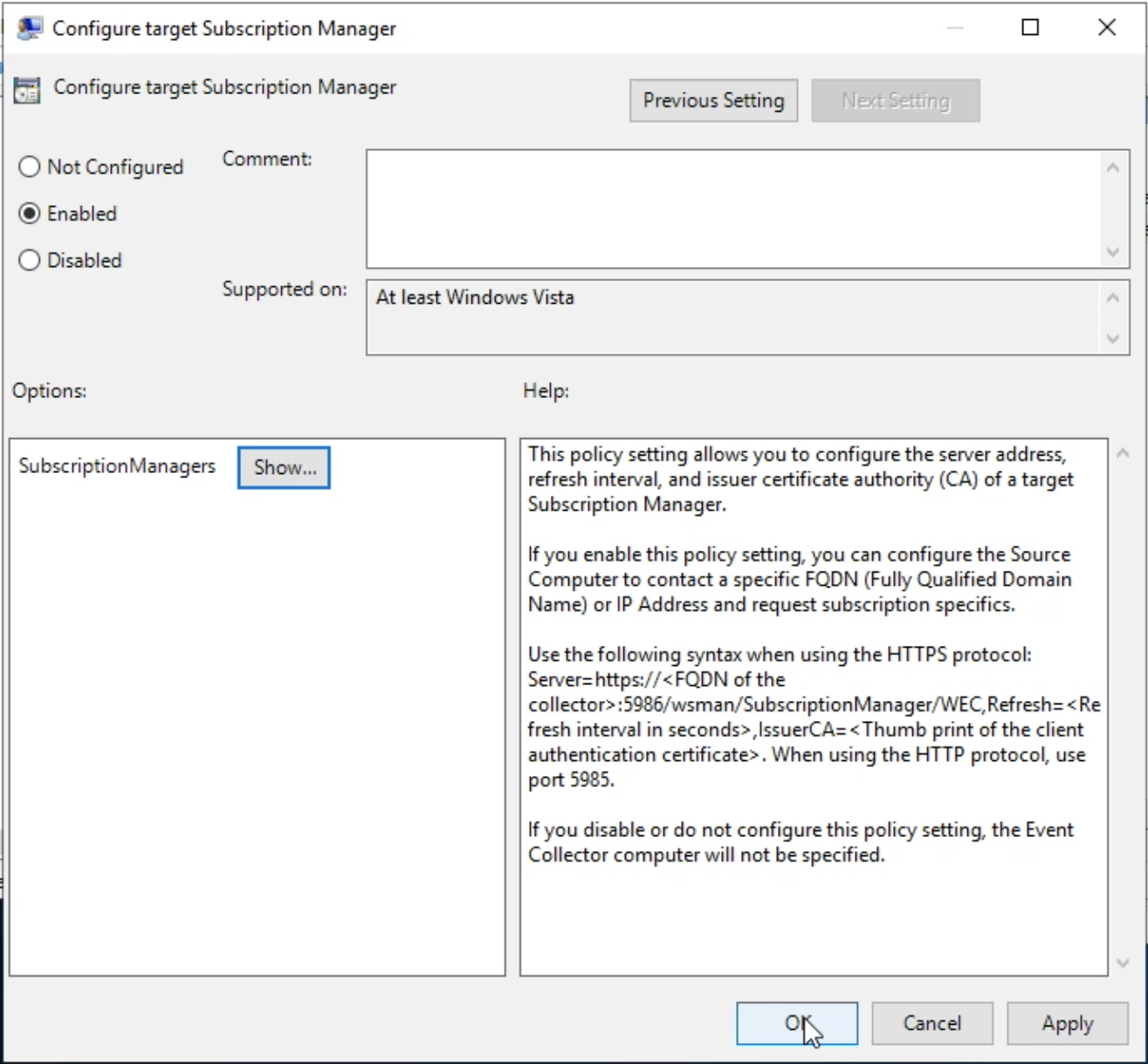
2.5. Apply
Execute gpupdate /force in cmd.exe on the Windows Server.
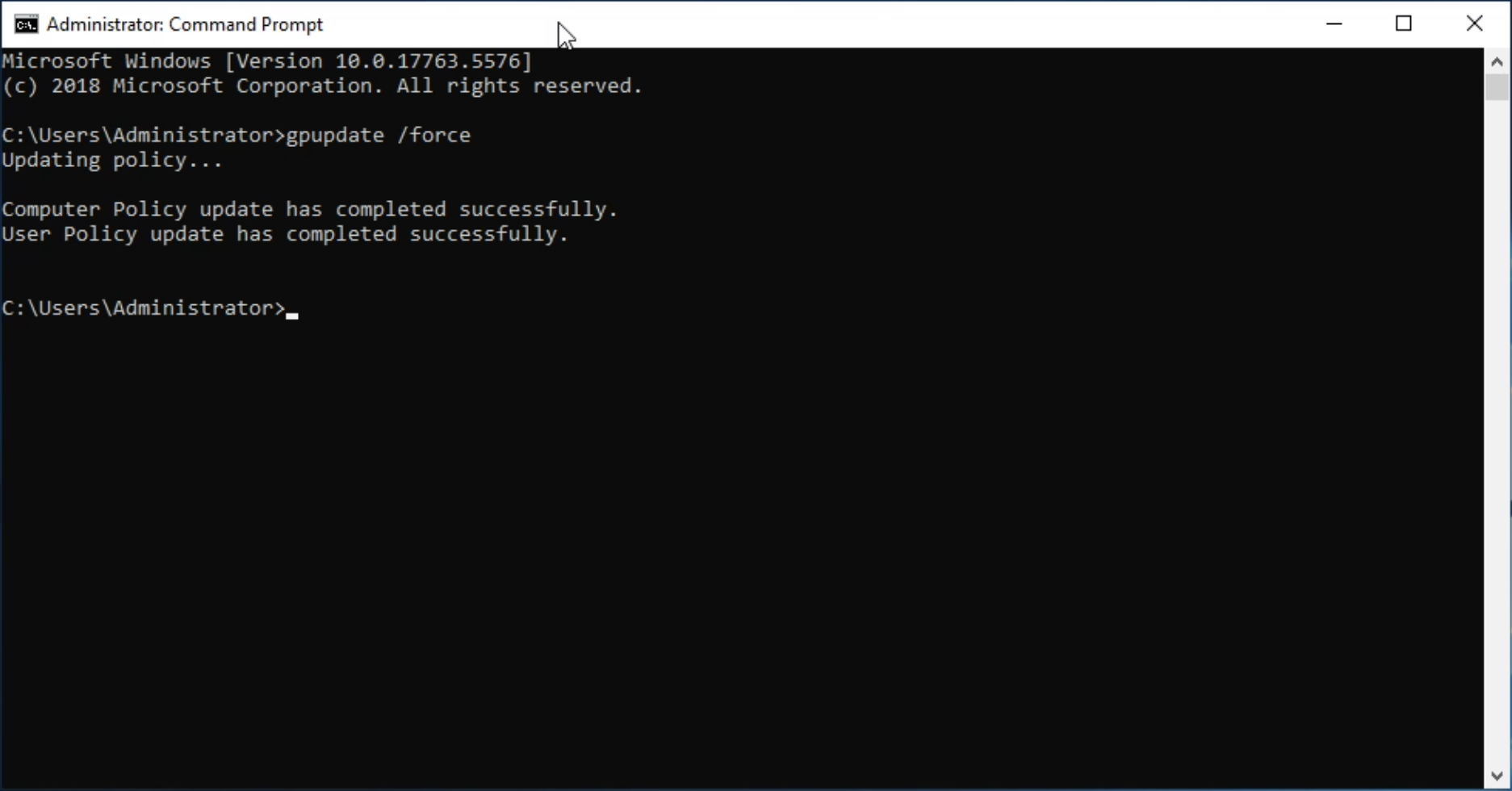
Security log
WEF can't access Windows security log by default.
To enable forwarding of the Security log, add Network Service to WEF.
Tip
Windows Security log is the most important source of cyber security information and must be configured.
3.1. Open the Group Policy Management Console
Navigate to Windows Administrative Tools > Group Policy Management, select your domain; DOMAIN.int in this example.
Right-click and select "Edit...".
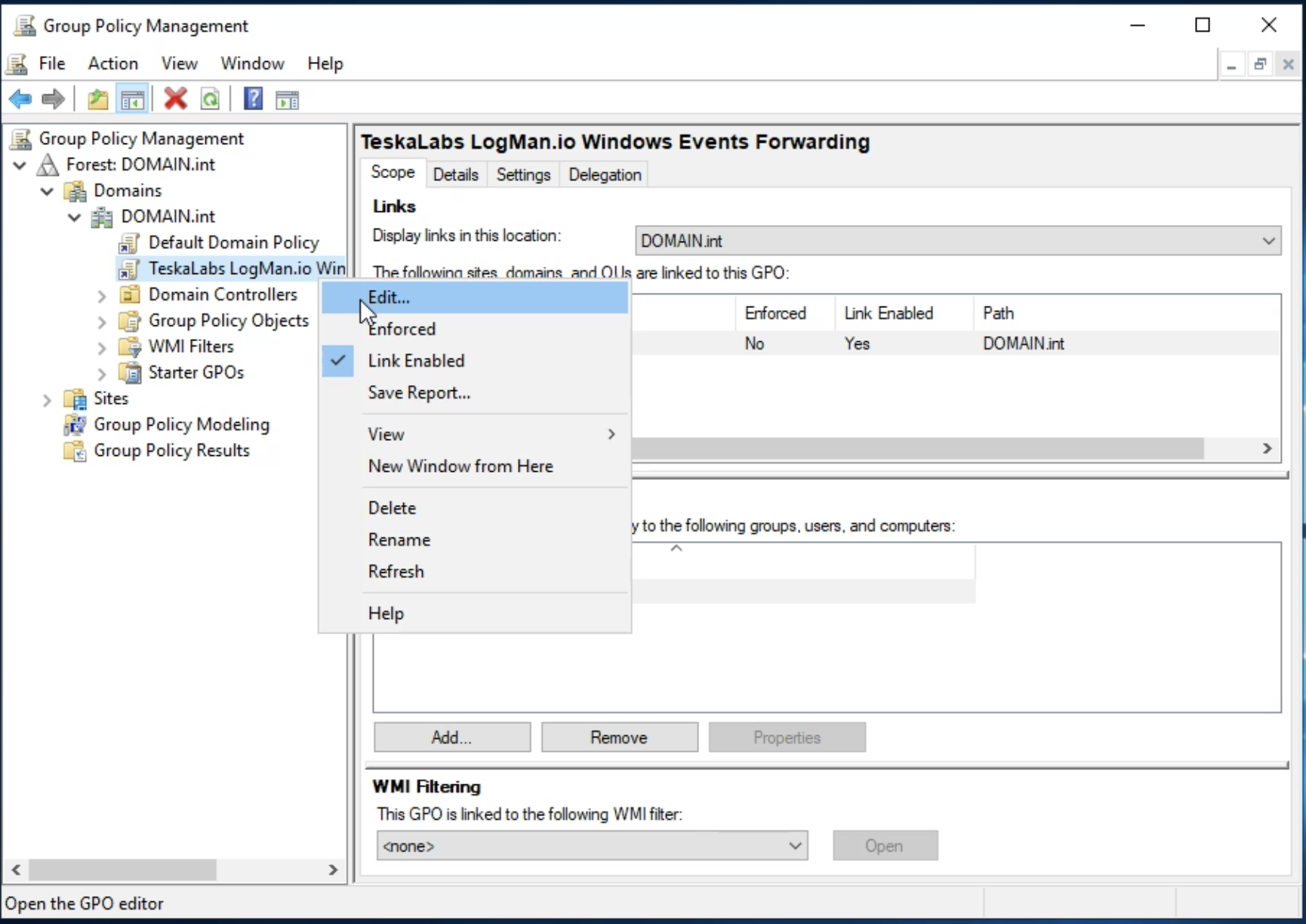
Navigate to Computer Configuration > Administrative Templates > Windows Components > and select Event Log Service.
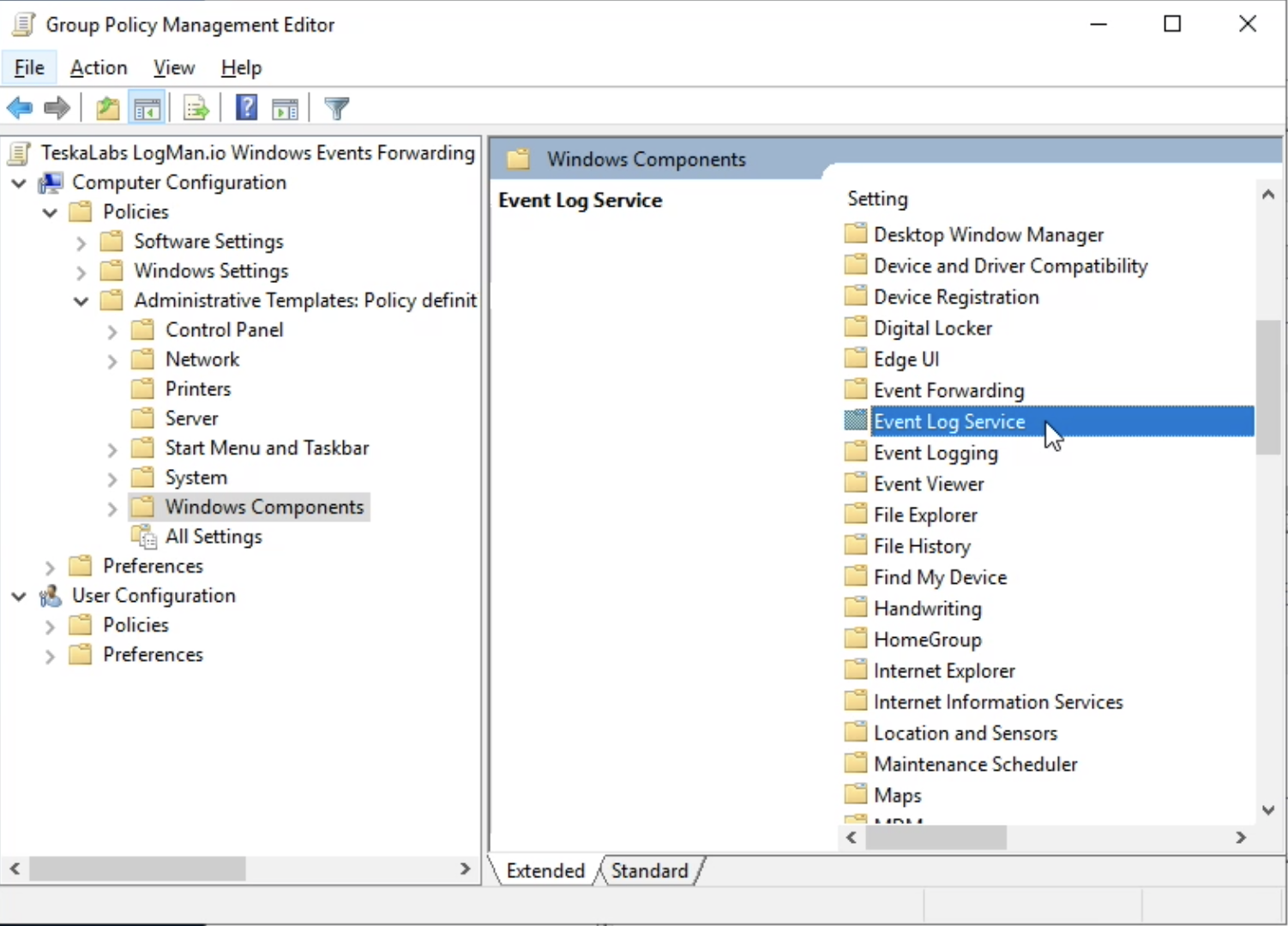
Then select Security.
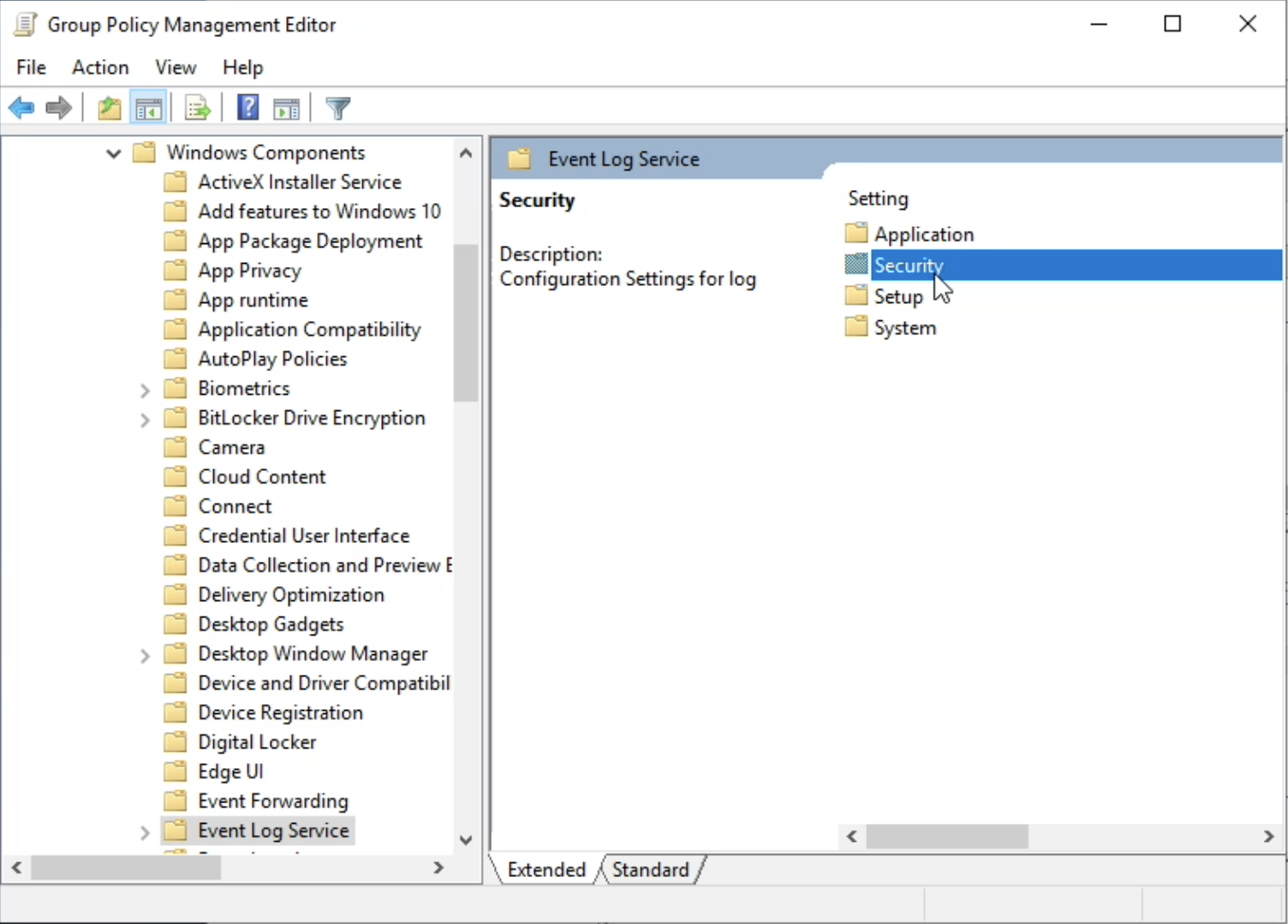
Select Configure log access.
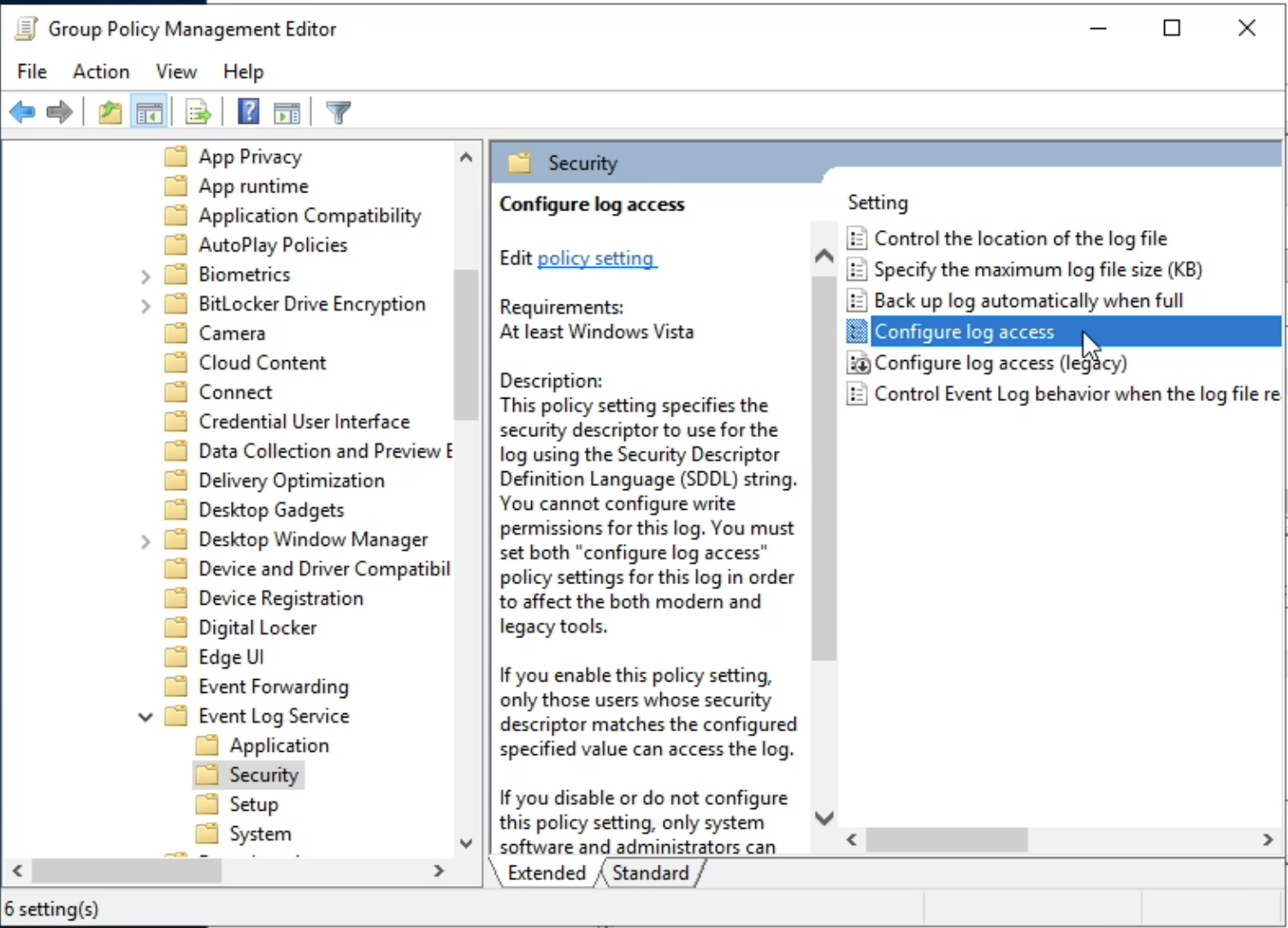
3.2. Configure the log access
In "Log Access" field, enter:
O:BAG:SYD:(A;;0xf0005;;;SY)(A;;0x5;;;BA)(A;;0x1;;;S-1-5-32-573)(A;;0x1;;;S-1-5-20)
Explanation
- O:BA: Specifies that the owner of the object is the Built-in Administrators group.
- G:SY: Specifies that the primary group is SYSTEM.
-
D:: Indicates that the following part defines the Discretionary Access Control List (DACL).
-
Built-in Administrators (BA): Read and write permissions.
- SYSTEM (SY): Full control with read and write permissions and special permissions for managing the event logs.
- Builtin\Event Log Readers (S-1-5-32-573): Read-only permissions.
- Network Service (S-1-5-20): Read-only permissions.

Press OK.
3.3. Apply
Execute gpupdate /force in cmd.exe on the Windows Server.
Troubleshooting
Network Service user must be part of the Event Log Readers group to access security logs.
Follow these steps to configure access:
-
Open RUN command line via Windows Key + R
-
Enter to open Local User Manager: lusrmgr.msc (for Windows Home edition, use gpedit.msc)
-
Open: Groups
-
Select: Event Log Readers
-
Add NT AUTHORITY\NETWORK SERVICE user
- Click "Add"
- Enter the exact name: NT AUTHORITY\NETWORK SERVICE
- Click "Check Names" to verify
-
For Kerberos authentication:
- Add the domain service account (e.g.,
DOMAIN\lmio-collector) - Only required when using domain authentication
- Add the domain service account (e.g.,
-
Click OK to save changes
-
Open command line (
cmd.exe) as Administrator -
Restart WinRM service:
net stop winrm
timeout /t 5
net start winrm
Note: This configuration must be applied on all computers sending Security Logs. For enterprise environments, use Group Policy deployment instead of manual configuration.
Standard logging
For LogMan.io we recommend to enable Advanced Auditing and Advanced Audit Policy as a way of the standard Windows logging setting. This standard way is based on LogMira group policy settings.
Upload the Group Policy Report XML Directly
- Download the Group Policy Report files.
- Open the TeskaLabs LogMan.io Windows Event Forwarding Group Policy that you created earlier in the Group Policy Management Console (
gpmc.msc). - Right-click the policy and select Import Settings.
- In the wizard, select the location where the backup was saved (if it’s not already selected).
- Click Next through the steps until the Finish button appears, then click Finish to complete the import.
Enable Advanced Auditing & Audit Policy Setting manually
Advanced Auditing
Computer Configuration> Policies> Windows Settings> Security Settings> Local Policies> Security Options- Enable Force audit policy subcategory settings
- Enable command-line logging
- Event Log Sizes
Computer Configuration> Policies> Windows Settings> Security Settings> Event Log- Set the following values from the table below:
| Property | Value |
|---|---|
| Application Log Size | 256k (or larger) |
| Security Log Size Workstations | 1,024,000kb (minimum) |
| Security Log Size Servers | 2,048,000kb (minimum) |
| System Log Size | 256k (or larger) |
Advanced Audit Policy Settings
- Configure Advanced Audit Policies
Computer Configuration> Policies> Windows Settings> Security Settings> Advanced Audit Policy Configuration> Audit Policies- Set the following values from the tables below:
| Account Logon | Suggested Values |
|---|---|
| Credential Validation | Success and Failure |
| Kerberos Authentication Service | Success and Failure |
| Kerberos Service Ticket Operations | Success and Failure |
| Other Account Logon Events | Success and Failure |
| Account Management | Suggested Values |
|---|---|
| Application Group Management | Success and Failure |
| Computer Account Management | Success and Failure |
| Distribution Group Management | Success and Failure |
| Other Account Management Events | Success and Failure |
| Security Group Management | Success and Failure |
| User Account Management | Success and Failure |
| Detailed Tracking | Suggested Values |
|---|---|
| DPAPI Activity | No Auditing |
| PNP (Plug and Play) | Success |
| Process Creation | Success and Failure |
| Process Termination | No Auditing |
| RPC Events | Success and Failure |
| Token Right Adjusted | Success |
| DS Access | Suggested Values |
|---|---|
| Detailed Directory Service Replication | No Auditing |
| Directory Service Access | No Auditing |
| Directory Service Changes | Success and Failure |
| Directory Service Replication | No Auditing |
| Logon/Logoff | Suggested Values |
|---|---|
| Account Lockout | Success |
| Group Membership | Success |
| IPsec Extended Mode | No Auditing |
| IPsec Main Mode | No Auditing |
| IPsec Quick Mode | No Auditing |
| Logoff | Success |
| Logon | Success and Failure |
| Network Policy Server | Success and Failure |
| Other Logon/Logoff Events | Success and Failure |
| Special Logon | Success and Failure |
| User / Device Claims | No Auditing |
| Object Access | Suggested Values |
|---|---|
| Application Generated | Success and Failure |
| Central Access Policy Staging | No Auditing |
| Certification Services | Success and Failure |
| Detailed File Share | Success |
| File Share | Success and Failure |
| File System | Success |
| Filtering Platform Connection | Success |
| Filtering Platform Packet Drop | No Auditing |
| Handle Manipulation | No Auditing |
| Kernel Object | No Auditing |
| Other Object Access Events | No Auditing |
| Registry | Success |
| Removable Storage | Success and Failure |
| SAM | Success |
| Policy Change | Suggested Values |
|---|---|
| Audit Policy Change | Success and Failure |
| Authentication Policy Change | Success and Failure |
| Authorization Policy Change | Success and Failure |
| Filtering Platform Policy Change | Success |
| MPSSVC Rule-Level Policy Change | No Auditing |
| Other Policy Change Events | No Auditing |
| Privilege Use | Suggested Values |
|---|---|
| Non Sensitive Privilege Use | No Auditing |
| Other Privilege Use Events | No Auditing |
| Sensitive Privilege Use | Success and Failure |
| System | Suggested Values |
|---|---|
| IPsec Driver | Success |
| Other System Events | Failure |
| Security State Change | Success and Failure |
| Security System Extension | Success and Failure |
| System Integrity | Success and Failure |
| Global Object Access Auditing | Suggested Values |
|---|---|
| File System | No Auditing |
| Registry | No Auditing |
TeskaLabs LogMan.io
4.1. Configure Microsoft Events collection
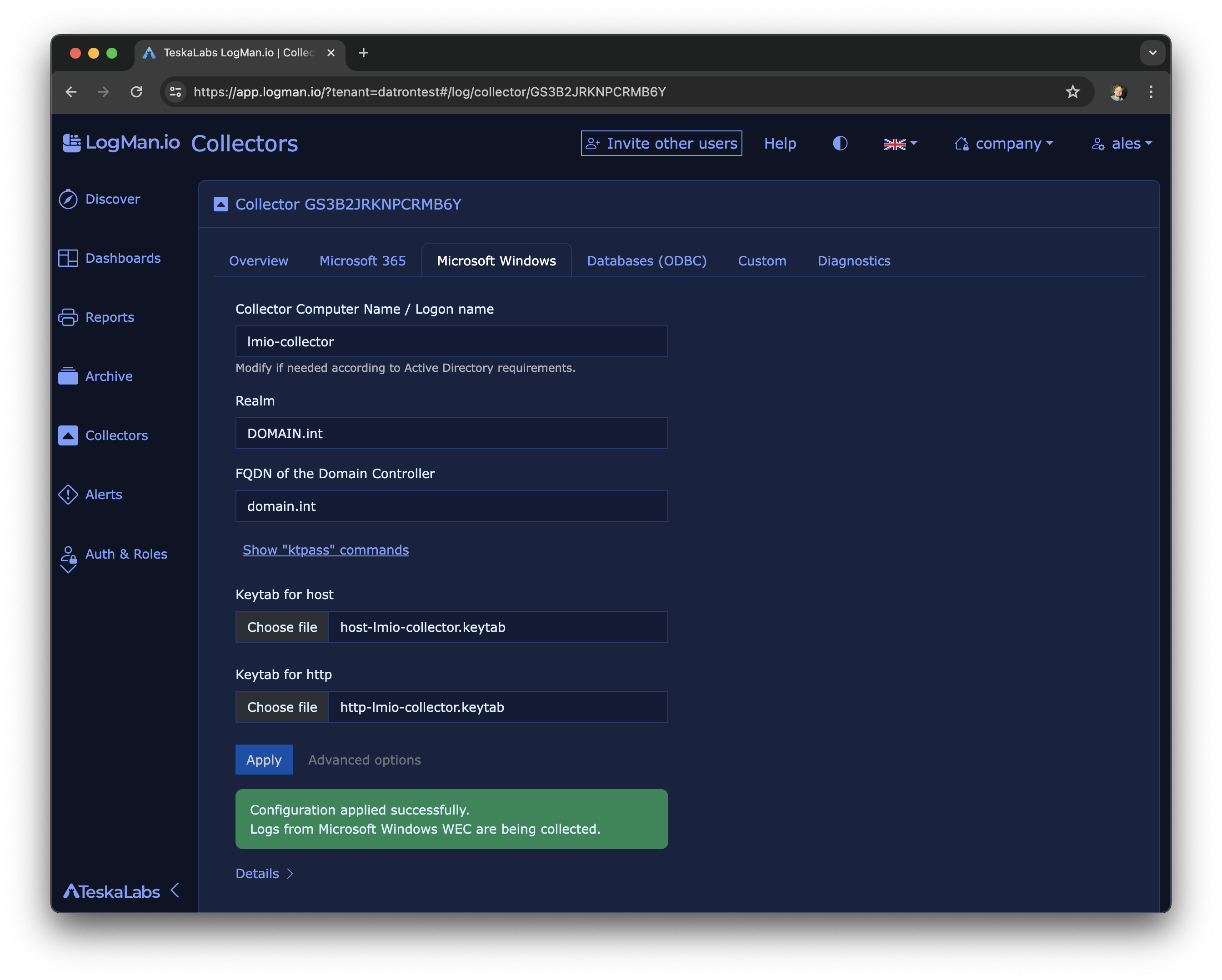
In TeskaLabs Logman.io, navigate to Log Sources >> Collectors >> Your Collector >> Microsoft Windows.
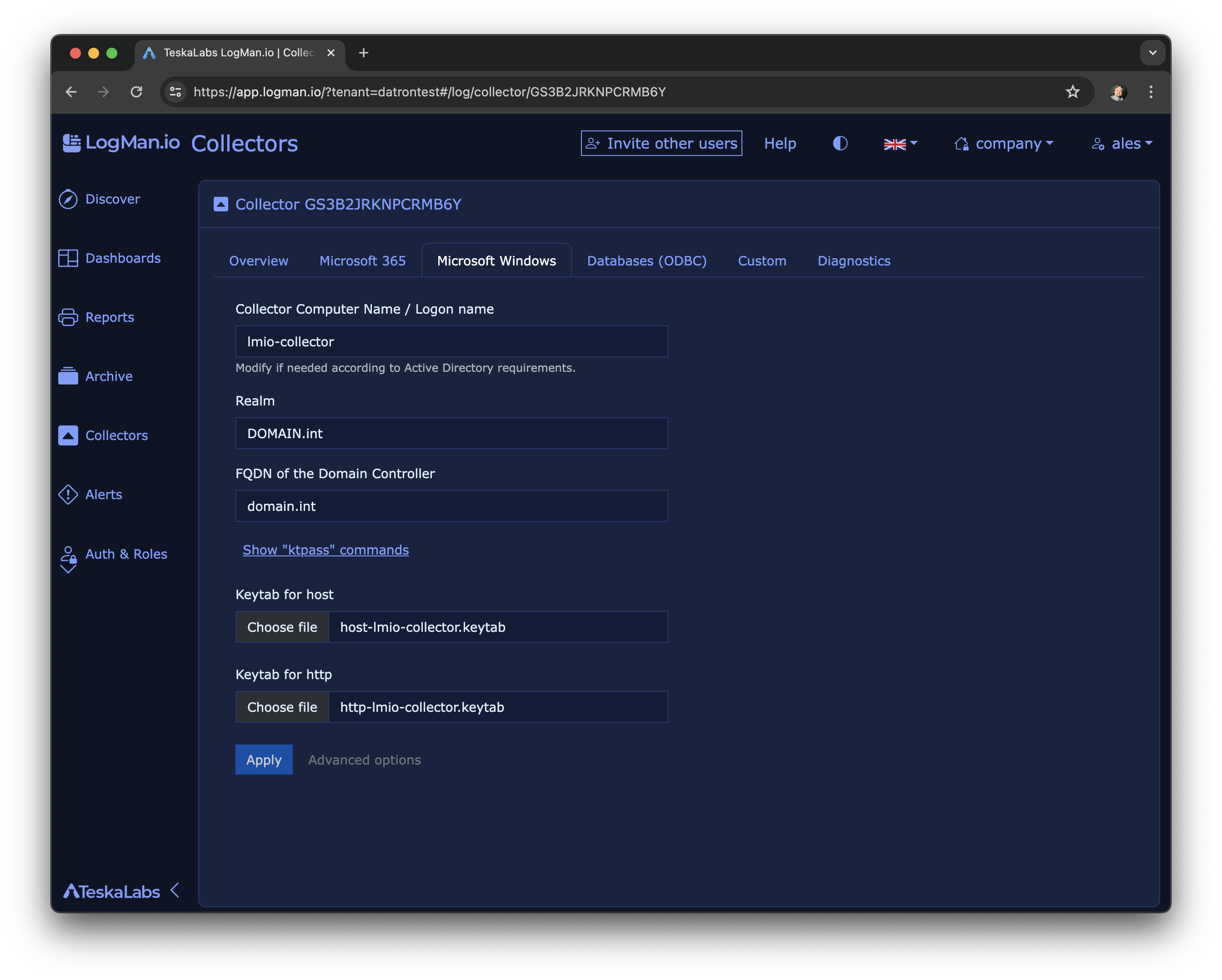
Fill the Realm and FQDN of the Domain Controller, add keytab files for host and http and press Apply.
4.2. The log collection is configured
Troubleshooting
Keytab contains no suitable keys
kinit: Keytab contains no suitable keys for http/lmio-collector.domain.int@DOMAIN.INT while getting initial credentials
This error indicates that the keytab file used for Kerberos authentication does not contain the correct keys for the specified principal.
This can be caused by:
* Incorrect principal name specified in the ktpass command when creating the keytab file
* Incorrect principal name specified in the collector configuration
* The keytab file does not contain the expected encryption types (AES256, AES128)
We recommend to verify the principal names and encryption types in both the ktpass command and the collector configuration, and to ensure that the keytab file is correctly generated with the expected keys.
Cannot contact any KDC for realm
kinit: Cannot contact any KDC for realm 'DOMAIN.LOCAL' while getting initial credentials
This error indicates that the collector cannot reach the Active Directory Domain Controller to obtain Kerberos tickets.
This can be caused by:
- Network connectivity issues between the collector and the domain controller
- Incorrect DNS configuration preventing the collector from resolving the domain controller's hostname
- Firewall rules blocking access to the domain controller on the required ports (UDP/TCP 88 for Kerberos)
- Incorrect realm or domain controller FQDN specified in the collector configuration
Local domain
Domain '.local' is reserved. In this case, click on Advanced options in the collector configuration and select a different Key Distribution Center (KDC) that is reachable by the collector, or use the IP address of the domain controller instead of its hostname.
Use the command nltest /dsgetdc to verify the correct domain controller and realm information.
Advanced topics
Alternatives
- Use of HTTPS / SSL certificates instead of Active Directory and Kerberos
- Use a local group policy instead of Active Directory Group Policy
Forwarding Event Log
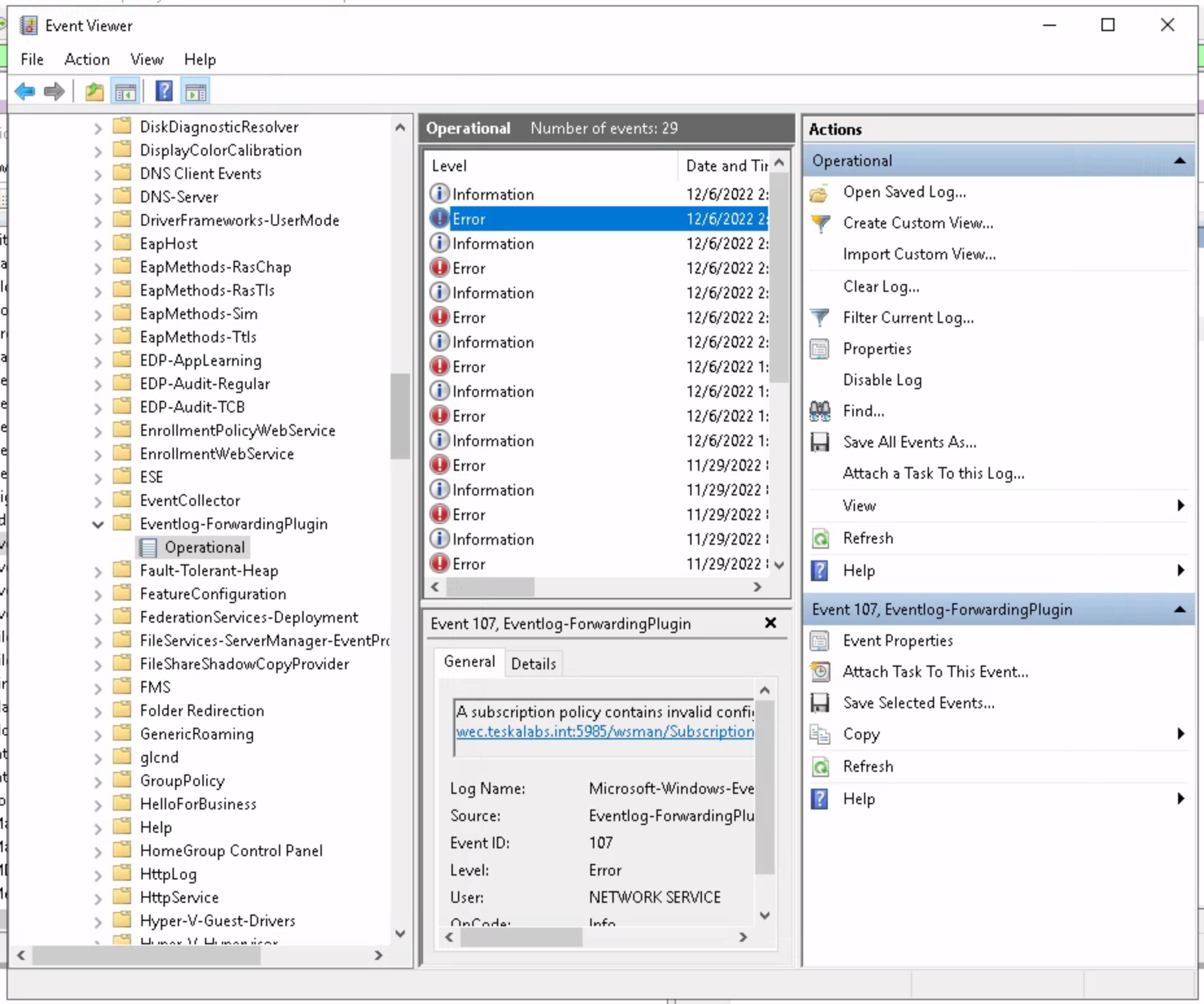
The Eventlog-forwardingPlugin/Operational event channel logs relevant information of machines that are set up to forward logs into the collector.
It also contains the information about possible issues with WEF subscription.
Use Event Viewer application to investigate.
High availability with two collectors
You can deploy two LogMan.io Collectors for high availability so that Windows machines can fail over from one collector to the other without doubling traffic or adding a deduplicator.
Setup:
- Both collectors use the same keytabs and the same AD user (e.g.
lmio-collector). - There is a single DNS A record and single SPN for that name (e.g.
lmio-collector.domain.int). The name resolves to both collector IPs via DNS round-robin; a TTL of 15 minutes is recommended so that when a Windows machine re-resolves the name, it can get the other collector’s IP. - Both collectors use the same subscription ID in their WEC configuration so that events are not treated as duplicates when a machine switches from one collector to the other.
When the DNS TTL expires, a Windows machine may reconnect to the other collector. From Kerberos’ perspective this is fine: tickets are obtained once per machine; there is no conflict or race between the two collectors. Successful failover of individual Windows machines from one collector to the other has been observed in production.
Note
This deployment pattern is one option for WEF HA and should be monitored in your environment. If you see duplicate events or connectivity issues, review DNS TTL, subscription IDs, and collector configuration.
Collecting from Multiple Domains
When you need to collect Windows Events from multiple Active Directory domains, you need to configure Kerberos authentication for each domain and combine the keytab files.
Prerequisites
- Access to Domain Controllers for all domains you want to collect from
- Keytab files for each domain (host and http principals)
- Ability to modify Kerberos configuration on the collector
Collector Configuration
Configure the WEC input in /conf/lmio-collector.yaml:
input:WEC:WECKerberosInput:
  listen: 5985  # Just to be explicit
  output: microsoft-windows-events-v1

output:CommLink:microsoft-windows-events-v1: {}
Environment Variable Configuration
The collector must have the KRB5CCNAME environment variable set to use a directory-based credential cache.
This allows the collector to store multiple Kerberos tickets (one for each domain) simultaneously.
For Docker/container deployments, add this to your docker-compose.yaml:
services:
  lmio-collector:
    environment:
      KRB5CCNAME: "DIR:/tmp/krb5cc_wef"
For other deployment types, ensure the environment variable is set before starting the collector service.
Kerberos Configuration
Configure /conf/kerberos/krb5.conf to support multiple domains:
[libdefaults]
    default_realm = DOMAIN2.COM
    dns_lookup_realm = false
    dns_lookup_kdc = true
    ticket_lifetime = 24h
    renew_lifetime = 7d
    forwardable = true
    rdns = false

[domain_realms]
.DOMAIN1.COM = DOMAIN1.COM
DOMAIN1.COM = DOMAIN1.COM
.DOMAIN2.COM = DOMAIN2.COM
DOMAIN2.COM = DOMAIN2.COM
.domain1.com = DOMAIN1.COM
domain1.com = DOMAIN1.COM
domain2.com = DOMAIN2.COM
.domain2.com = DOMAIN2.COM

[realms]
DOMAIN1.COM = {
    # kdc = domain1.com
    admin_server = domain1.com
}

DOMAIN2.COM = {
        # kdc = domain2.com
        admin_server = domain2.com
}
Tip
Replace DOMAIN1.COM and DOMAIN2.COM with your actual domain names.
The domain_realms section maps domain names (case-insensitive) to realm names.
The realms section defines the KDC and admin server for each realm.
Combining Keytab Files
Combine keytab files from all domains into a single keytab file using ktutil:
ktutil
ktutil:  rkt /conf/kerberos/domain1-host-lmio-collector.keytab
ktutil:  rkt /conf/kerberos/domain1-http-lmio-collector.keytab
ktutil:  rkt /conf/kerberos/domain2-host-lmio-collector.keytab
ktutil:  rkt /conf/kerberos/domain2-http-lmio-collector.keytab
ktutil:  wkt /conf/kerberos/krb5.keytab
ktutil:  q
This creates a combined keytab file at /conf/kerberos/krb5.keytab that contains all principals from both domains.
Initializing Kerberos Tickets
Initialize Kerberos tickets for each domain:
export KRB5CCNAME=DIR:/tmp/krb5cc_wef
kinit -kt /conf/kerberos/krb5.keytab http/lmio-collector.domain2.com@DOMAIN2.COM
kinit -kt /conf/kerberos/krb5.keytab http/lmio-collector.domain1.com@DOMAIN1.COM
Why DIR: instead of FILE:?
The DIR: prefix specifies a directory-based credential cache, which allows storing multiple tickets in separate files within the directory.
This is essential when collecting from multiple domains, as each kinit command creates a separate ticket file.
Using FILE: would specify a single file-based cache, which can only hold one ticket at a time and would be overwritten by subsequent kinit commands.
Verify that tickets are initialized correctly:
klist -A
You should see tickets for both domains.
Warning
Make sure the keytab file path in kinit commands matches the actual location of your combined keytab file.
The collector must be able to authenticate to both domains using the combined keytab.