Managing your account
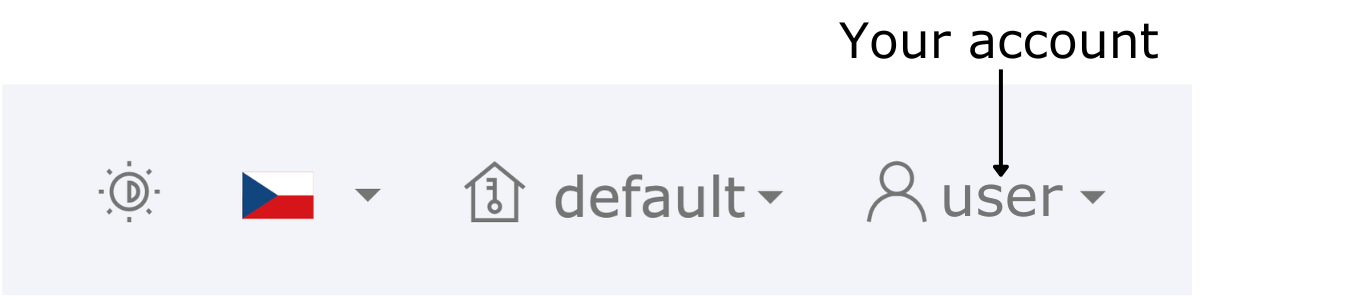
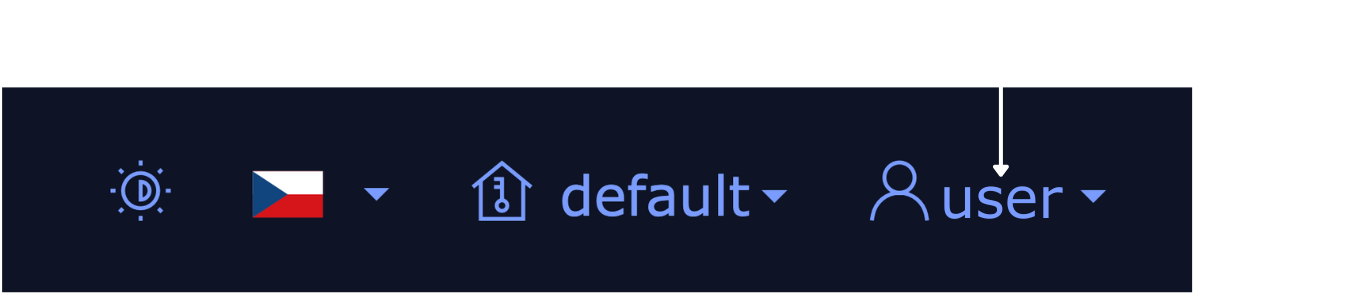
Your account details and controls are available from the account menu, which you can access by clicking on your account name in the top right corner of the screen:
Changing your password
- Click on your account name.
- Click Change password.
- Enter your current password and new password.
- Click Set password.
You should see confirmation of your password change. To return to the page you were on before changing your password, click Go back.
Changing account information
- Click on your account name.
- Click Account settings.
- Here you can:
- Change your password
- Change your email address
- Change or add your phone number
- Log out
- Click on what you want to do, and make your changes. The changes won't be visible immediately - they'll be visible when you log out and log back in.
Securing your account with 2FA
LogMan.io provides two-factor authentication (2FA) to add an extra layer of security to your account. You can choose between using an Authenticator app (TOTP) or Security keys (FIDO2/WebAuthn) as your second factor.
- Click on your account name.
- Click Account settings.
- In the Multi-factor authentication section select your preferred method and follow the instructions to set it up.
Pairing a social or enterprise account for login
If your organization has set up social or enterprise login providers (like Microsoft Entra), you can link your LogMan.io account to those providers for easier access.
- Click on your account name.
- Click Account settings.
- In the Social & enterprise logins section, click Link a new login account.
- Select the provider you want to link (e.g., Microsoft Entra) and follow the instructions to complete the linking process.
Viewing your access permissions
- Click on your account name.
- Click Access control, and you'll see what permissions you have.
Logging out
- Click on your account name.
- Click Logout.
You can also log out from the Account settings screen.
Logging out from all devices
- Click on your account name.
- Click Account settings.
- Click Logout from all devices.
When you log out, you'll be automatically taken to the login screen.