Installation from Virtual Machine image
This short tutorial explains how to install the TeskaLabs LogMan.io Collector from a virtual machine image.
Tip
If you are using a hardware TeskaLabs LogMan.io Collector, connect the monitor via HDMI and go straight to step 5.
-
Download the virtual machine disk image.
VMDK ~800 MB
-
Import the downloaded disk image to your virtualization platform.
-
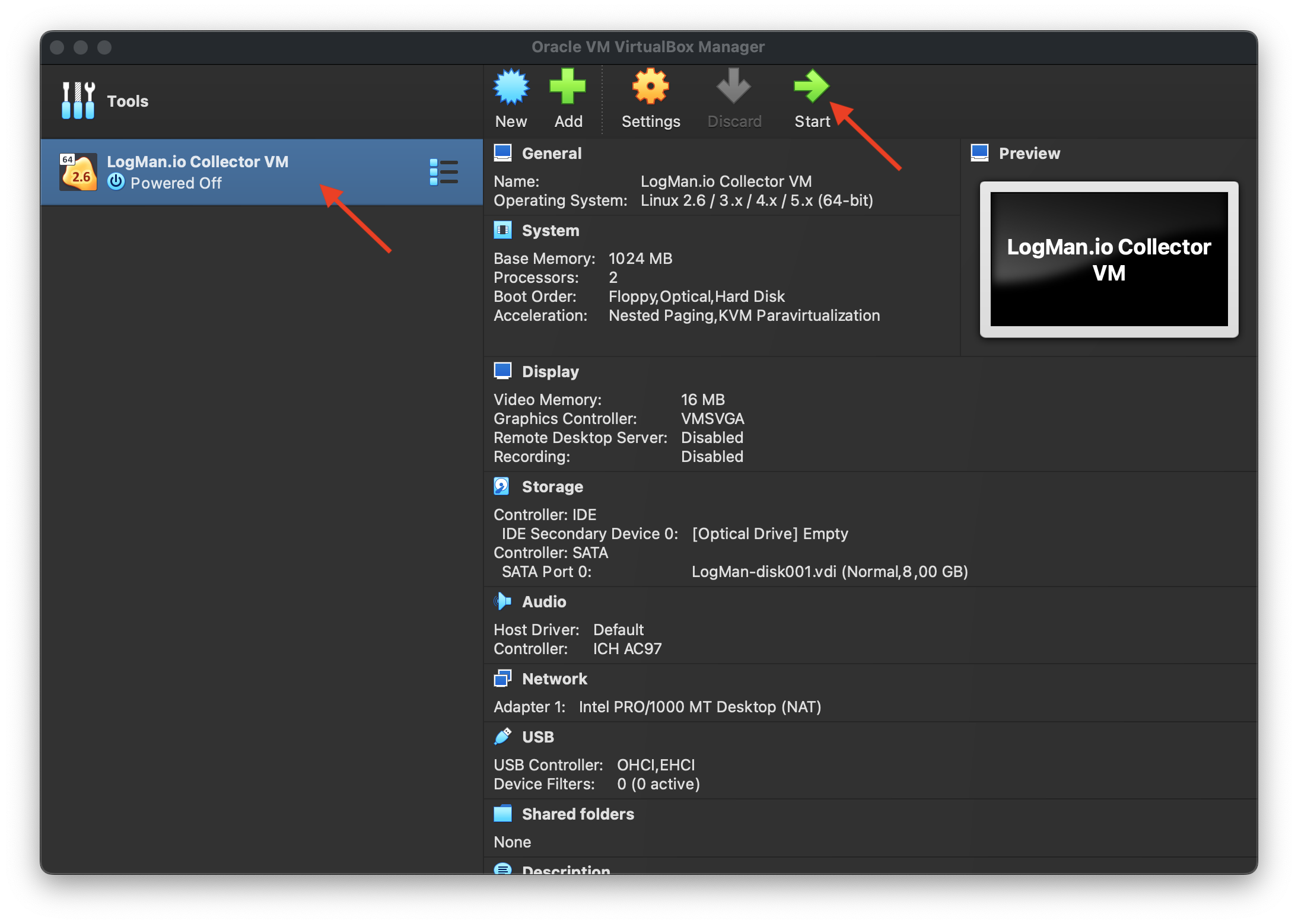
Create a new virtual machine
- Name: LogMan.io Collector VM (or name it according to your naming conventions)
- Type: Linux 64bit
- CPU: 2 cores (or more)
- RAM: 2GB
- OS HDD: Use
lmio-collector.vmdkthat you downloaded in the previous step - Data HDD: Create a second disk for a log cache, 50 GB minimum. Thin provisioning is possible and recommended for larger data disks.
-
Configure network settings of a new virtual machine
Requirements:
- The virtual machine must be able to reach the TeskaLabs LogMan.io installation.
- The virtual machine must be reachable from devices that will ship logs into TeskaLabs LogMan.io.
-
Launch the virtual machine.
-
Configure the OS layer of the collector
- Press
Alt-F2to get to the OS console - Login as
root - Type
passwdand set the root password - Type
passwd tladminand set the administrator password - Optionally enable SSH server:
service sshd startrc-update add sshd
- Set a correct LogMan.io URL:
vi /conf/lmio-collector.yaml- Edit
url: https://app.logman.io/lmio-receiverline - Save by
:wq
rebootto apply
- Press
-
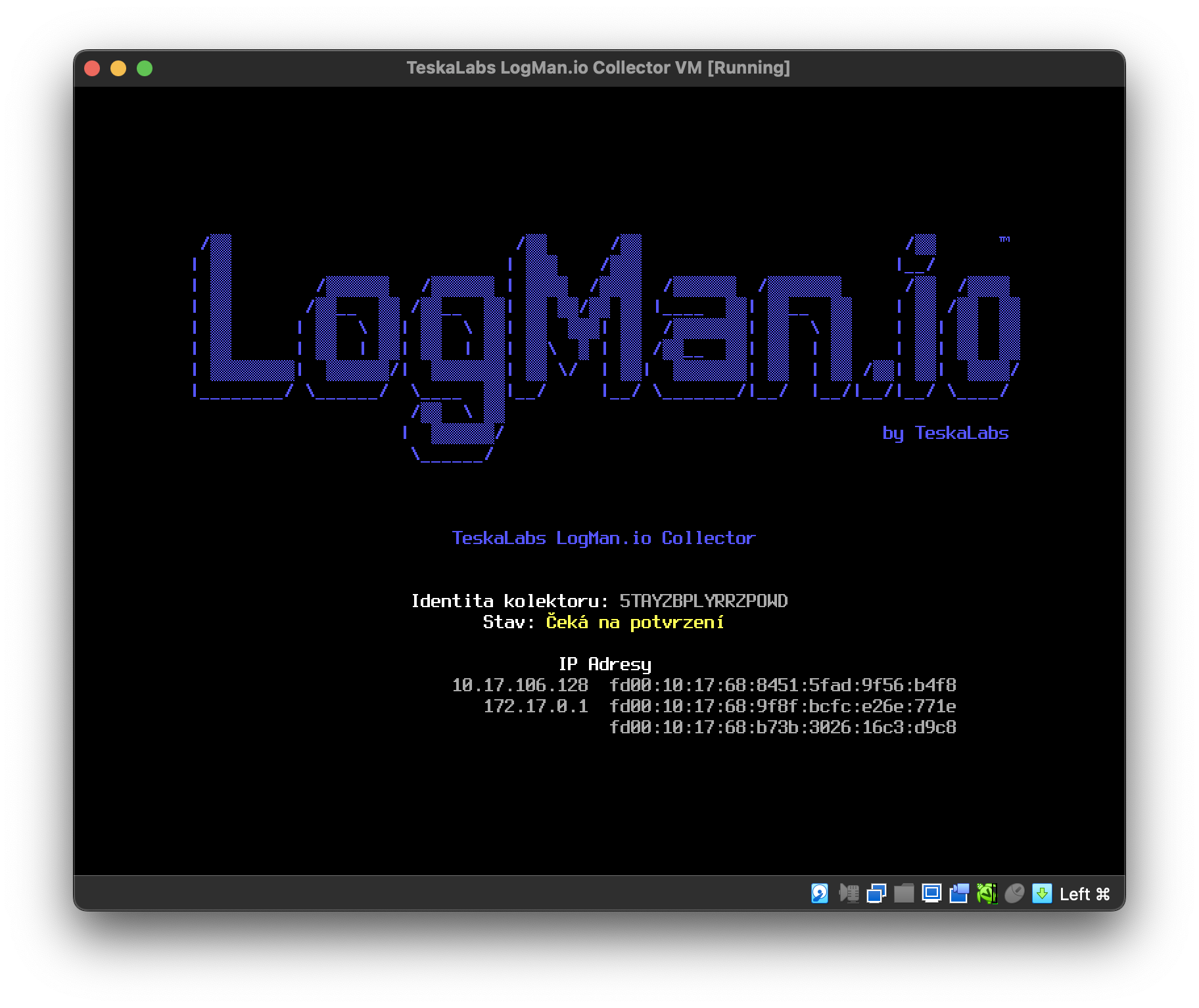
Determine the identity of TeskaLabs LogMan.io Collector.
The identity consists of 16 letters and digits. Please save this for the following steps.
-
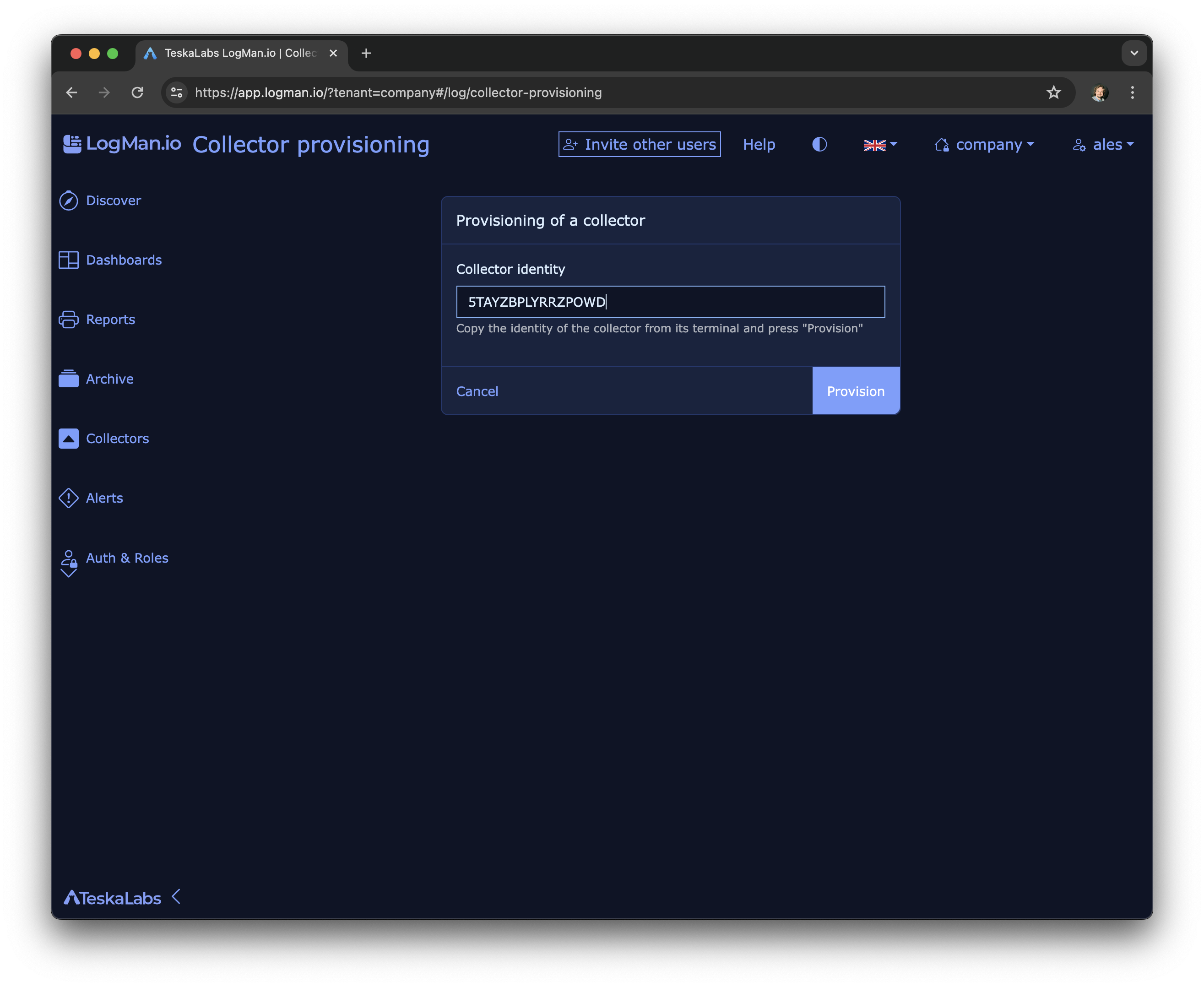
Provision the Collector in the LogMan.io Web UI.
Open Log sources >> Collectors. Find the Collector by its identity from step 7 (marked with a grey dot) and click Provision. Assign the Collector to a tenant.
-
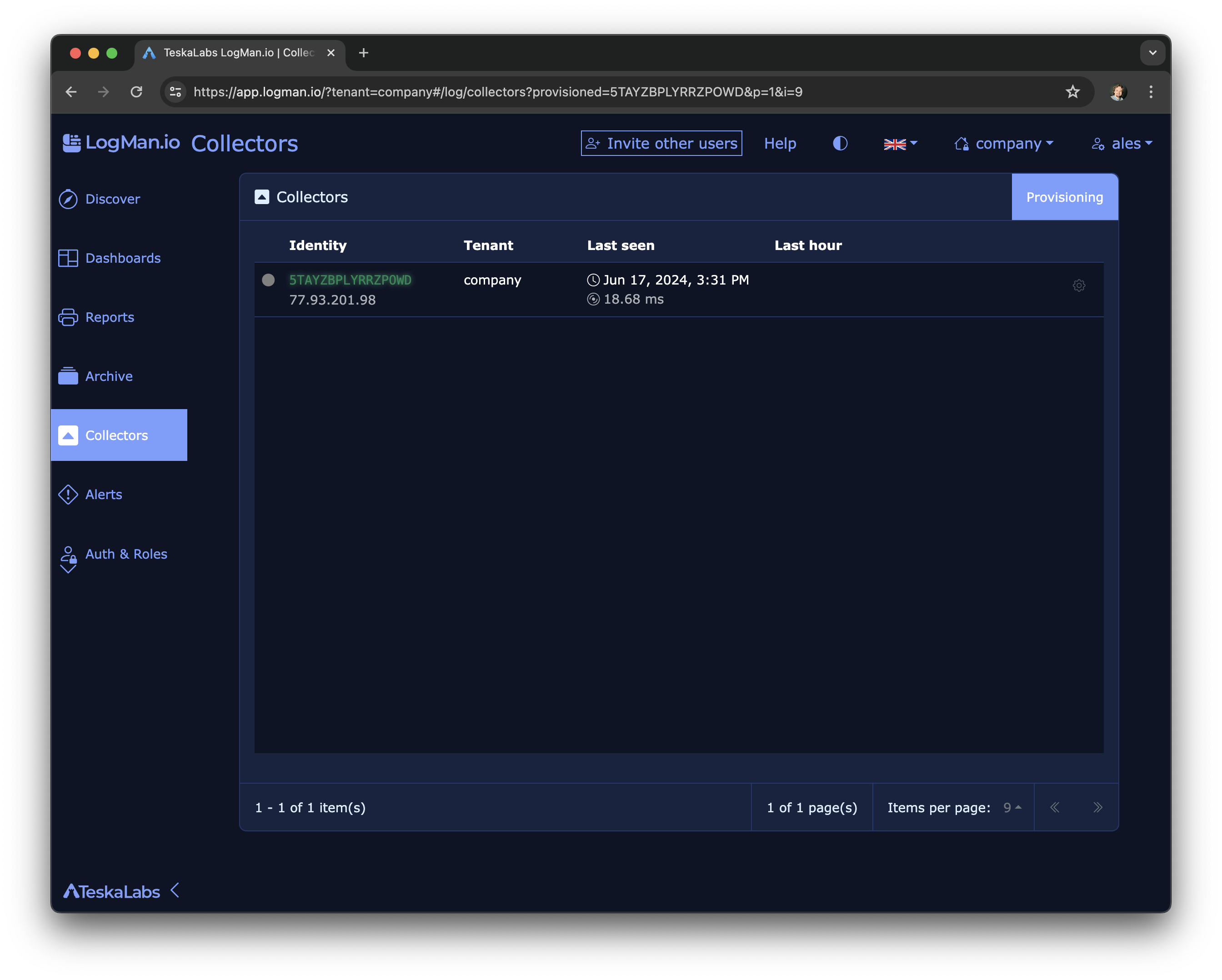
TeskaLabs LogMan.io Collector is successfully connected.
After provisioning, the Collector is marked with a green dot.
Tip
The green dot indicates that the Collector is online and provisioned. The activity chart shows how many logs the Collector has received in the last 24 hours.
Administration inside the VM
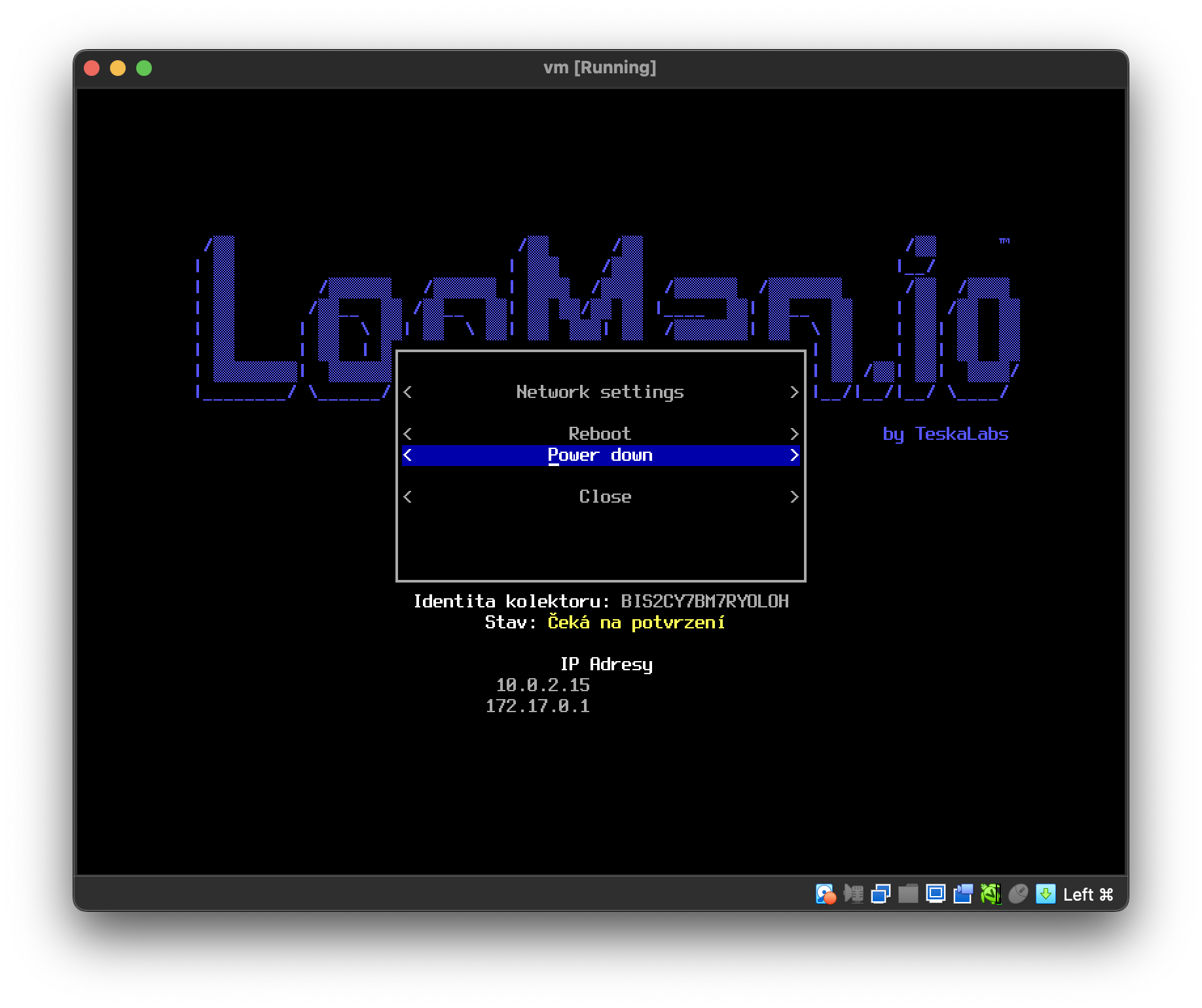
Administrative actions in the Virtual Machine of TeskaLabs LogMan.io Collector are available in the menu. Press "M" to access it. Use arrow keys and Enter to navigate and select actions.
Available options are:
- Power down
- Reboot
- Network configuration
Tip
We recommend to use Power down feature to safely turn off the collector's virtual machine.
Recommended virtualization drivers
- SCSI controller should be VirtIO
- Network device is VirtIO
Additional notes
You can connect an unlimited number of log collectors, e.g. to collect from different sources or to collect different types of logs.
Supported virtualization technologies
The TeskaLabs LogMan.io Collector supports the following virtualization technologies:
- VMware
- Oracle VirtualBox
- Microsoft Hyper-V
- Qemu