Conversations
A conversation is a session between users (optional), the model, and tools. It is the primary interactive surface of the harness: messages, tool calls, reasoning, and engine notices form a live timeline; the UI connects over a WebSocket and receives tokens, tool status, and sandbox updates as they happen.
Conversations are tenant-scoped and can be resumed from the list. The same engine also backs agents and schedules that run with little or no live chatting.
Multiplayer and visibility
Conversations are multiplayer by default. A tenant-wide conversation behaves like a shared room: several analysts can work in it at the same time.
| Mode | Harness value | Who can access |
|---|---|---|
| Tenant-wide (default) | tenant |
Everyone in the tenant — read and send messages |
| Personal | private |
Only the user who started the conversation (the owner) |
In tenant-wide mode:
- Every user in the tenant sees the conversation in the list and can open it
- Anyone can read the timeline and send messages to steer the agent
- The UI shows who else is currently viewing the thread (Also here sidebar toast)
Use multiplayer for pair investigation, handoffs, and shared analyst work. Switch to personal mode when the work must stay with one person.
Only the owner can change visibility. Before the first message, the empty screen asks Who can see this conversation? (Only me / Everyone in tenant). After start, toggle visibility from the header icon (lock = private, chat bubble = tenant-wide); the harness asks for confirmation.
Context window size
Long conversations accumulate tokens from messages, tool output, and reasoning. Staying within a reasonable context window keeps responses fast and reliable.
Rule of thumb: aim to work below 100k tokens in the active conversation.
Token indicator
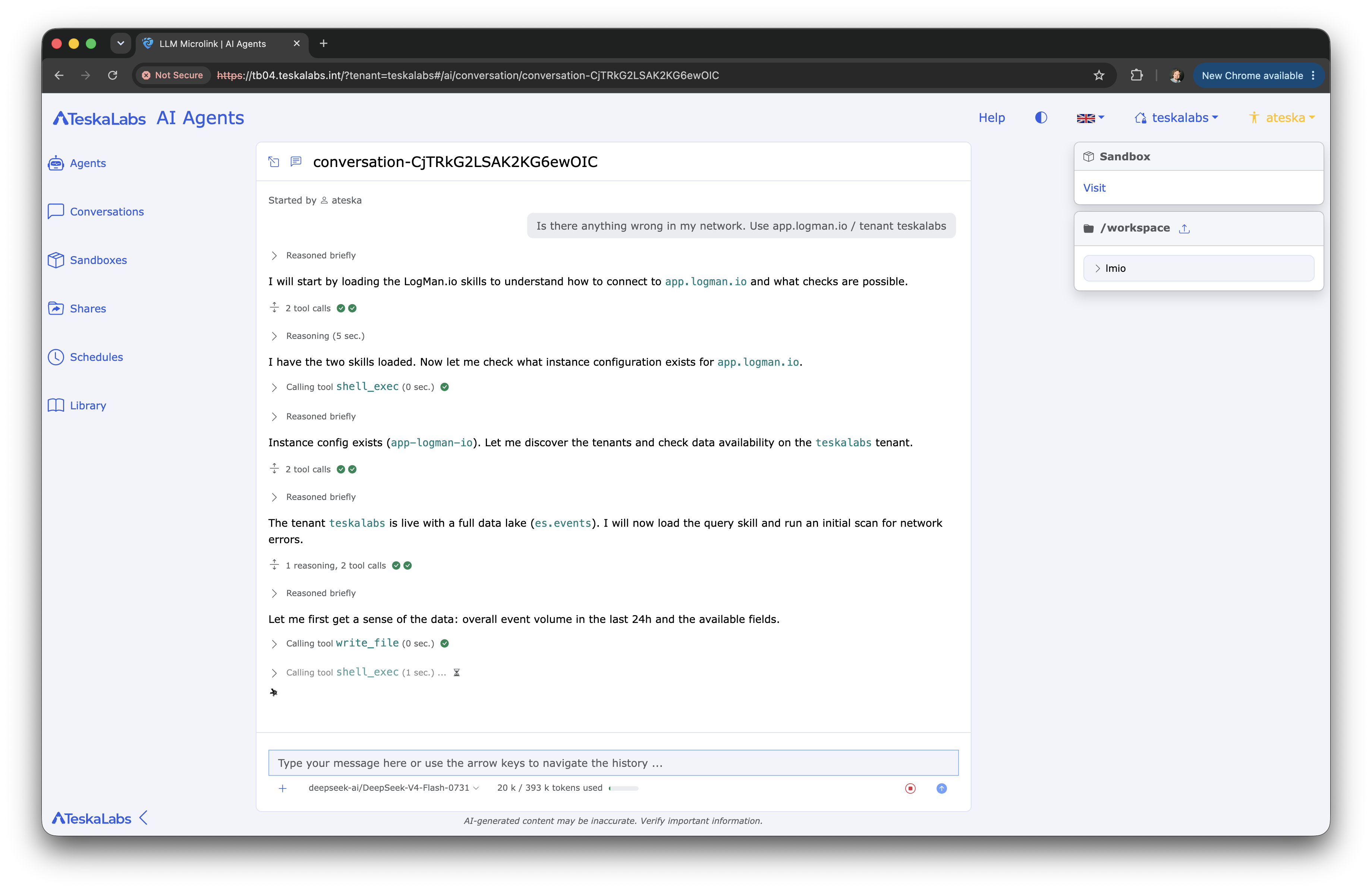
On the conversation detail screen, at the bottom of the chat card (near the message input), the harness shows token usage when the provider reports it:
- Tokens used and model context limit (for example
42k / 128k tokens used) - A progress bar — green below ~70%, yellow below ~90%, red above that
Watch this during heavy investigation or multi-step tasks.
Keeping the window small
| Approach | What it does |
|---|---|
delegate with silent: true (handoff) |
Spawn a subagent in a new conversation with a fresh context window. Write a handoff document under /workspace/ (goal, progress, decisions, open questions, next steps, file paths), attach it via delegate files, and tell the subagent to continue from there. The parent is not notified when the subagent finishes — work continues in the new thread. Same sandbox is shared. |
| New conversation from sandbox | On the sandbox detail screen, Start new conversation attaches an existing sandbox to a new conversation. Files under /workspace remain available; chat history starts empty. |
| Multiple conversations, one sandbox | Several conversations (or agents) can share a single sandbox — separate threads for separate phases or parallel work while reusing workspace files and share mounts. |
Intermediate tool output from a delegated subagent does not flood the parent context. Prefer handoff over letting one conversation grow without bound.
Renaming and summary
Each conversation has a title in the list and header.
| Method | How |
|---|---|
| Manual rename | Click the title in the conversation header, edit, confirm (Enter or click away) |
| Automatic summary | The harness generates a short title when the thread has enough messages and still has a default id-style title |
| Manual summarize | ⋯ menu → Commands → Summarize, or the /summarize command — the model produces a plain-text title (up to about eight words) |
Summarized titles help teammates find multiplayer threads after a long session.
In the web application
Navigation: Conversations in the AI area.
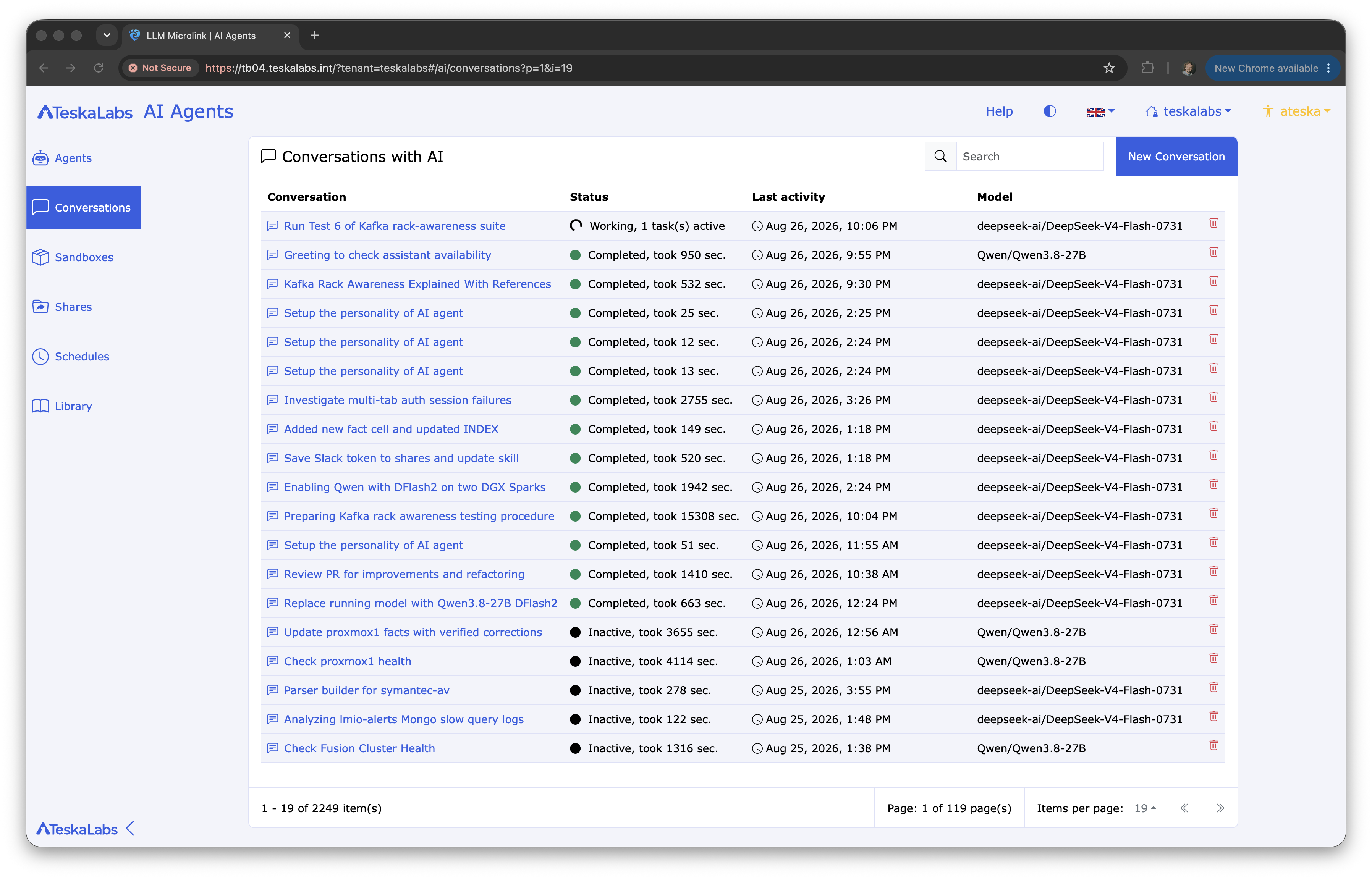
List view
Browse and resume past conversations for the tenant. Private conversations show a lock icon; tenant-wide conversations show a chat icon.
Detail screen
The conversation detail screen is the interactive harness UI:
- Streaming timeline (user, assistant, reasoning, tool calls, engine notices)
- Model selection and model settings
- Tools, skills, and commands (⋯ menu)
- Human-in-the-loop prompts (
ask) and vetting when a sensitive tool call pauses
Sidebar toasts
The right sidebar can show toasts (context panels) when relevant:
| Toast | When it appears | Content |
|---|---|---|
| Sandbox | A sandbox is attached | Link to the sandbox detail screen |
| Workspace browser | Same as above (below Sandbox toast) | File tree of /workspace |
| Scheduled Tasks | One or more schedules jobs linked to this conversation | Job link, instruction preview, schedule, periodic vs one-off, next run |
| Also here | Other users have this conversation open | List of those users (tenant-wide only) |
These toasts are informational; they do not block the chat.